Change Password
This guide explains how to change your password in the Family Navigator application for security purposes.
Overview
Changing your password regularly is an important security practice. Family Navigator provides a secure way for authenticated users to update their passwords through the application interface.
Accessing Change Password
From the User Menu
-
Log in to the Family Navigator application.
-
Click on your user avatar or initials in the top right corner of the navigation bar.
-
Select "Change Password" from the dropdown menu.
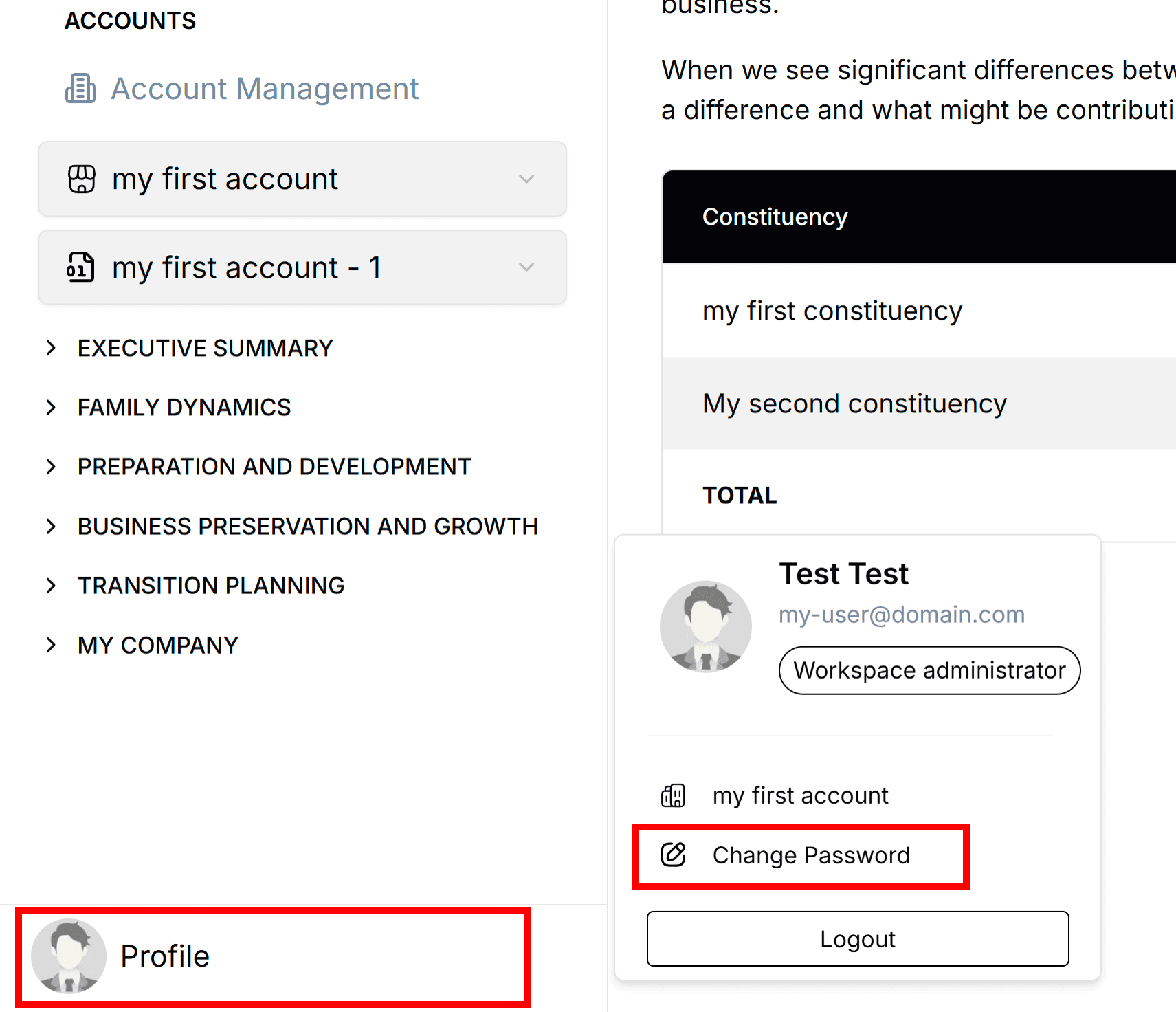
This will navigate you to the change password page with your email pre-filled.
Change Password Form
Step 1: Enter New Password
You'll be taken to a secure change password form that displays your email address.
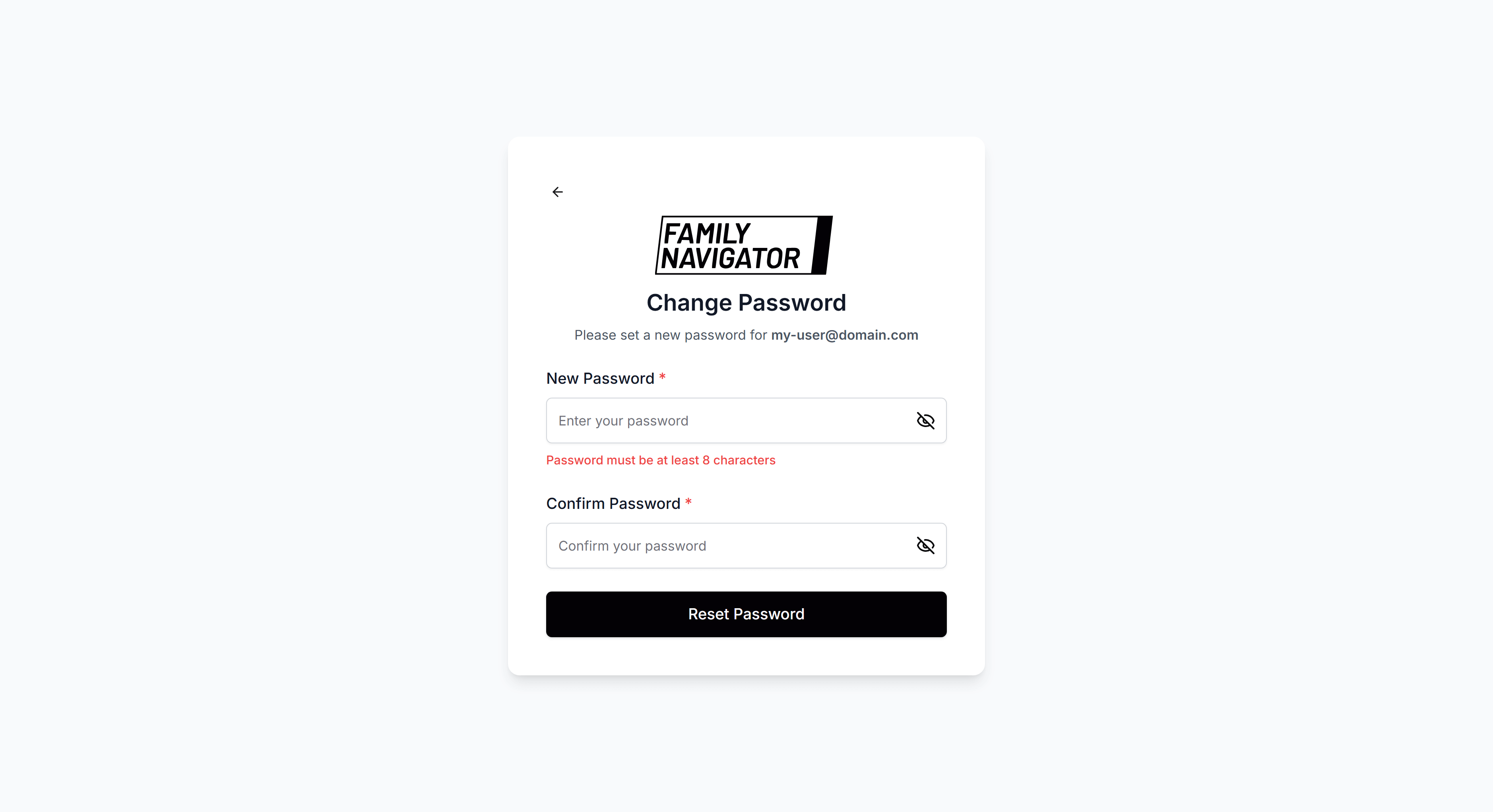
Enter your new password in the "New Password" field. Password requirements:
- Minimum 8 characters
- Must contain at least one uppercase letter
- Must contain at least one lowercase letter
- Must contain at least one number
- Must contain at least one special character
Step 2: Confirm New Password
Re-enter the same password in the "Confirm Password" field to ensure accuracy.
Step 3: Submit Changes
Click the "Reset Password" button to save your new password.
Password Validation
The form includes real-time validation:
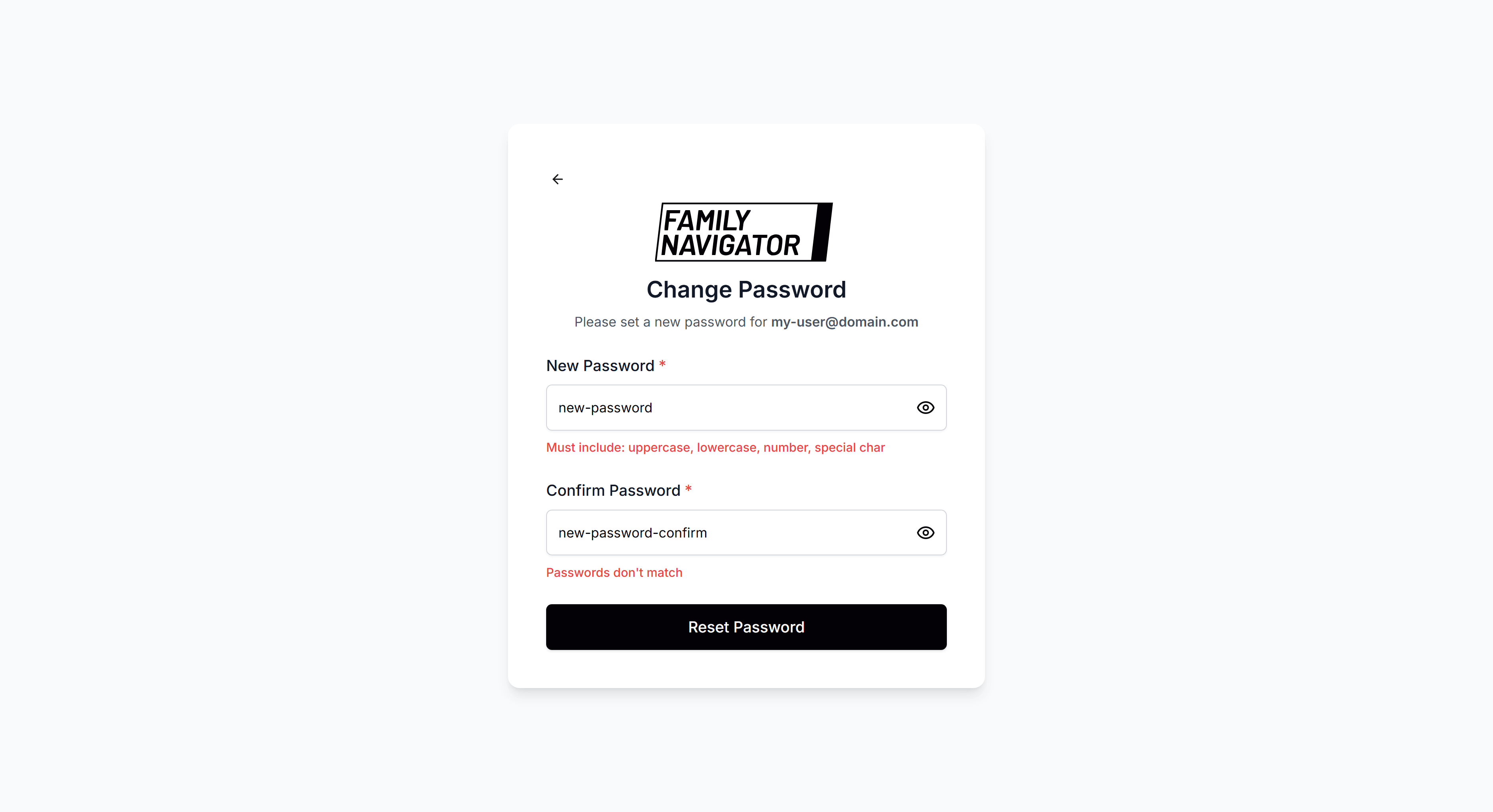
- Matching Passwords: Both password fields must match exactly
- Strength Requirements: Password must meet all security criteria
- Required Fields: Both password fields are mandatory
If validation fails, you'll see error messages below the respective fields.
Success Confirmation
Upon successful password change:
- You'll see a success notification
- You'll be automatically redirected back to the previous page
- Your new password is immediately active
Error Handling
If the password change fails:
- An error notification will appear
- Common issues: Network problems, server errors
- Try again or contact support if issues persist
Security Considerations
Password Best Practices
- Length: Use at least 12 characters when possible
- Complexity: Combine uppercase, lowercase, numbers, and symbols
- Uniqueness: Don't reuse passwords from other accounts
- Regular Changes: Update passwords periodically
- No Personal Info: Avoid using names, birthdays, or common words
Session Security
- After changing your password, you'll remain logged in
- The change takes effect immediately across all sessions
- No other users are affected by your password change
Troubleshooting
Form Not Loading
- Ensure you're logged in with a valid session
- Check your internet connection
- Try refreshing the page
Validation Issues
- Verify password meets all requirements
- Ensure both password fields match exactly
- Check for any special character restrictions
Submission Problems
- Network Error: Check internet connection and try again
- Server Error: Contact support if the issue persists
- Session Expired: Log out and log back in, then try again