Download Reports
This guide explains how to download reports from the Family Navigator application, including PDF reports and CSV data exports.
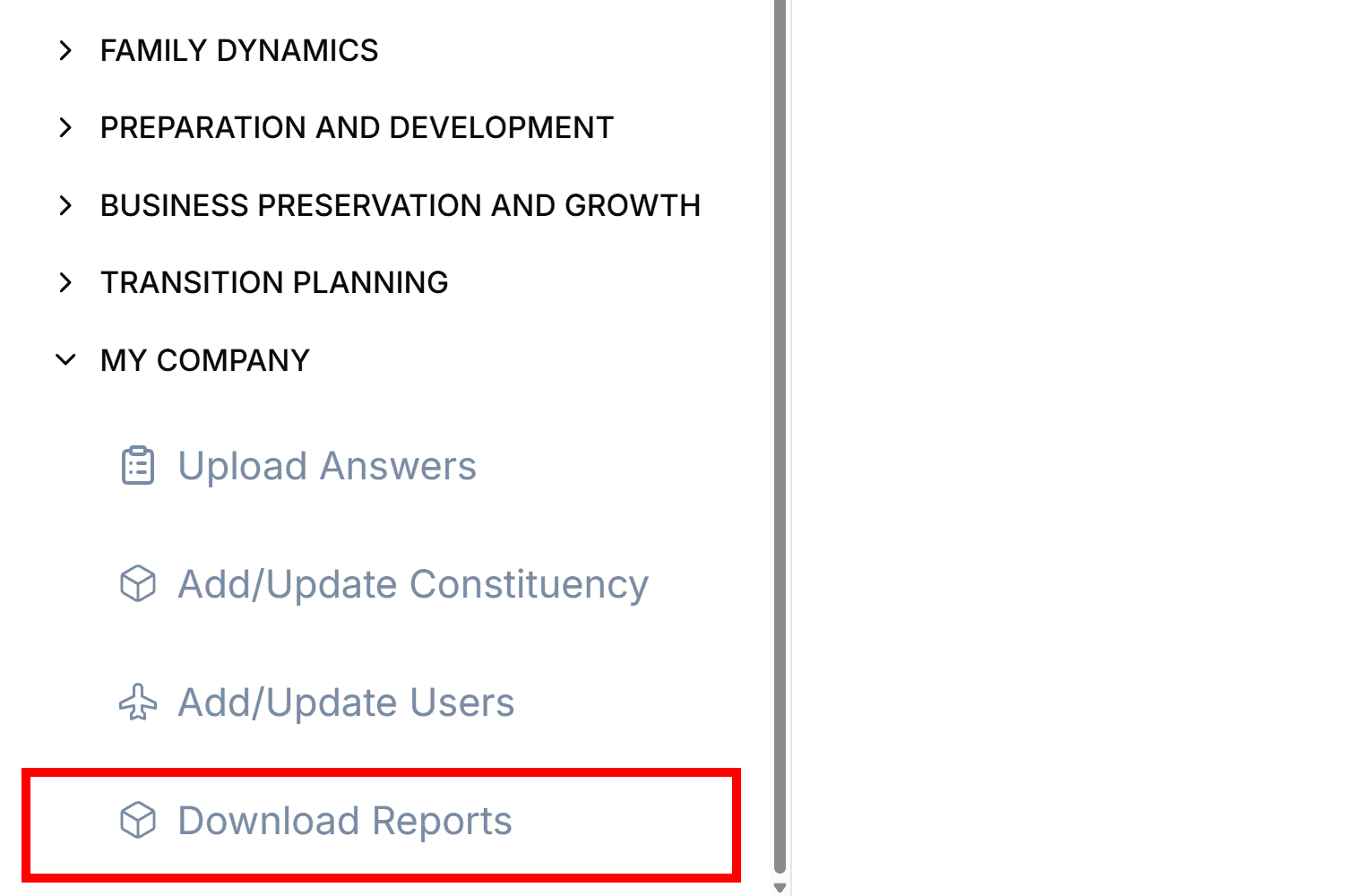
Accessing the Download Reports Modal
- Log in to the Family Navigator application.
- Navigate to the main dashboard.
- Click the "Download Report" button located in the top navigation or dashboard area.
Report Types
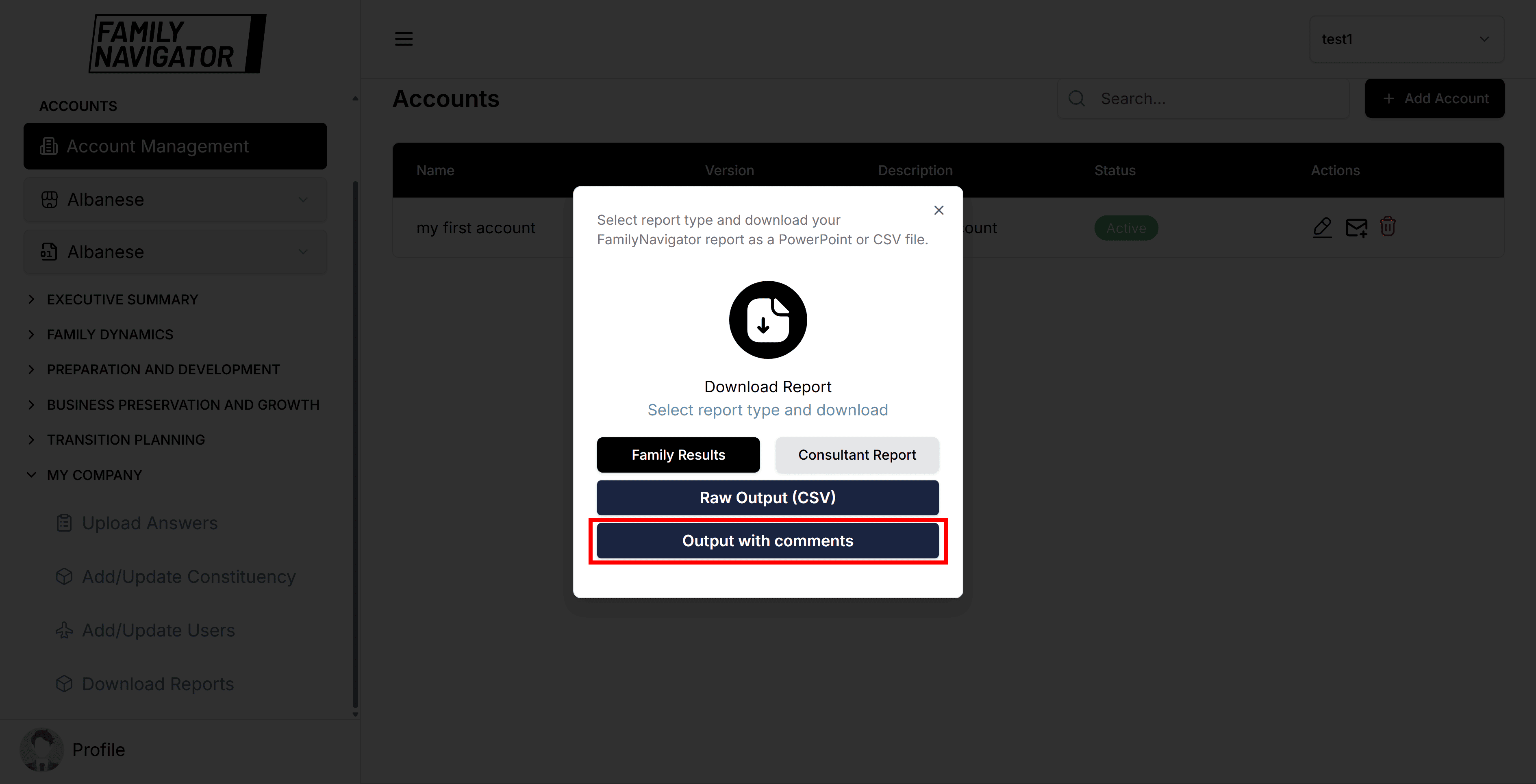
The Download Reports modal offers several options for exporting your data:
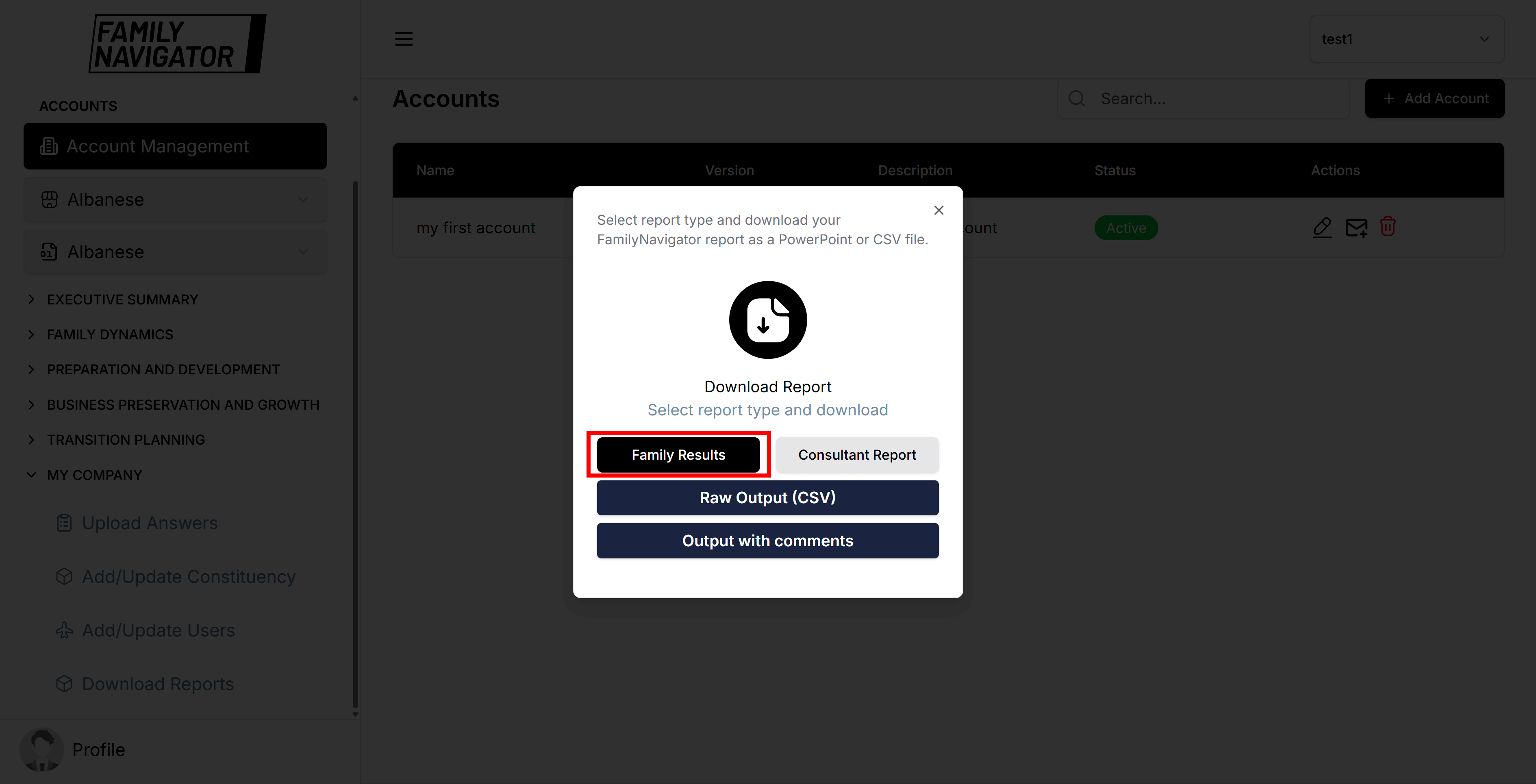
Family Results Report (PDF)
This generates a PDF report focused on family results without comments.
- Click the "Family Results" button to select this option.
- The report will include summary data, heatmaps, questions, and constituency information.
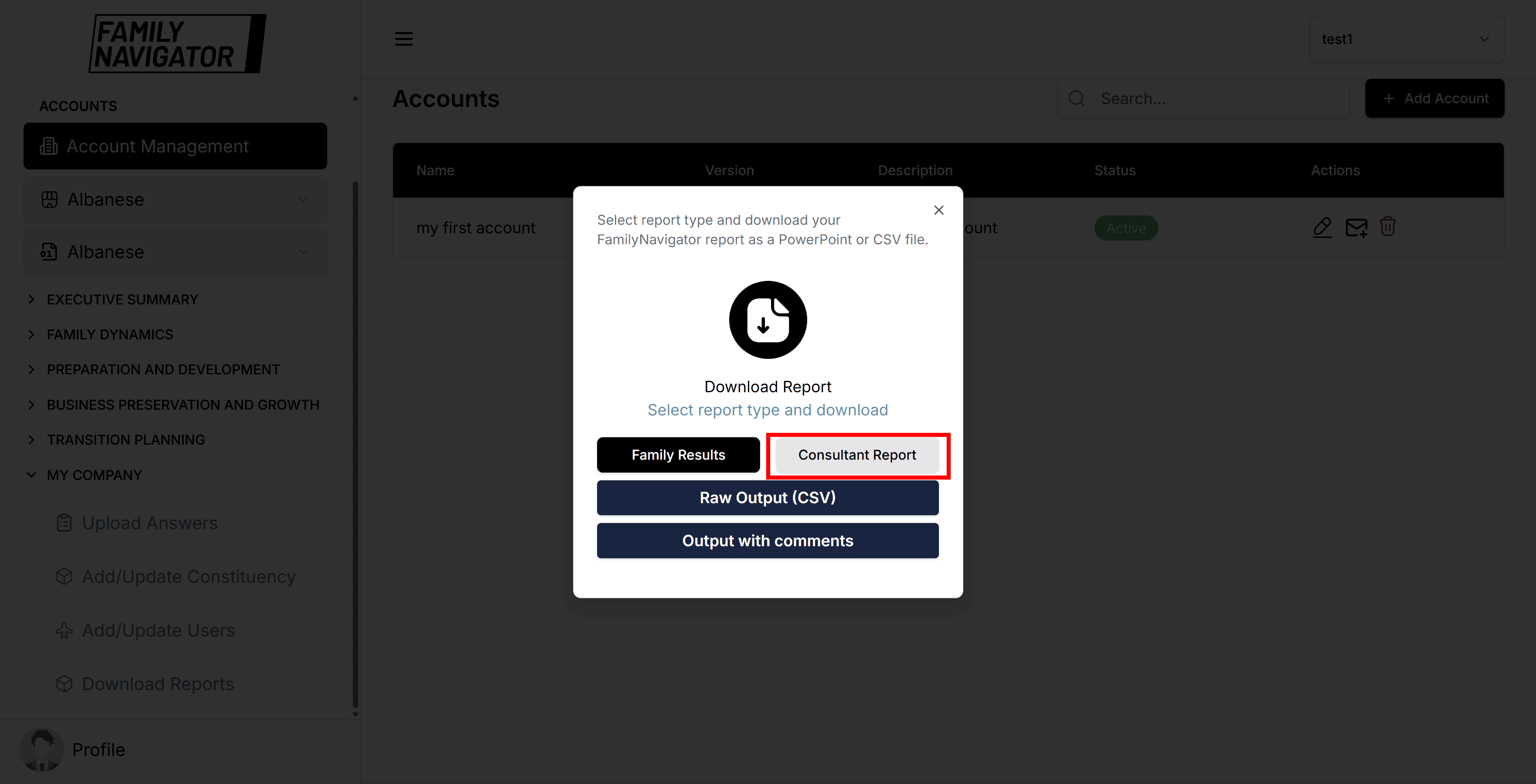
Consultant Report (PDF)
This generates a PDF report for consultants, including comments.
- Click the "Consultant Report" button to select this option.
- The report will include all family results data plus additional consultant-specific insights and comments.
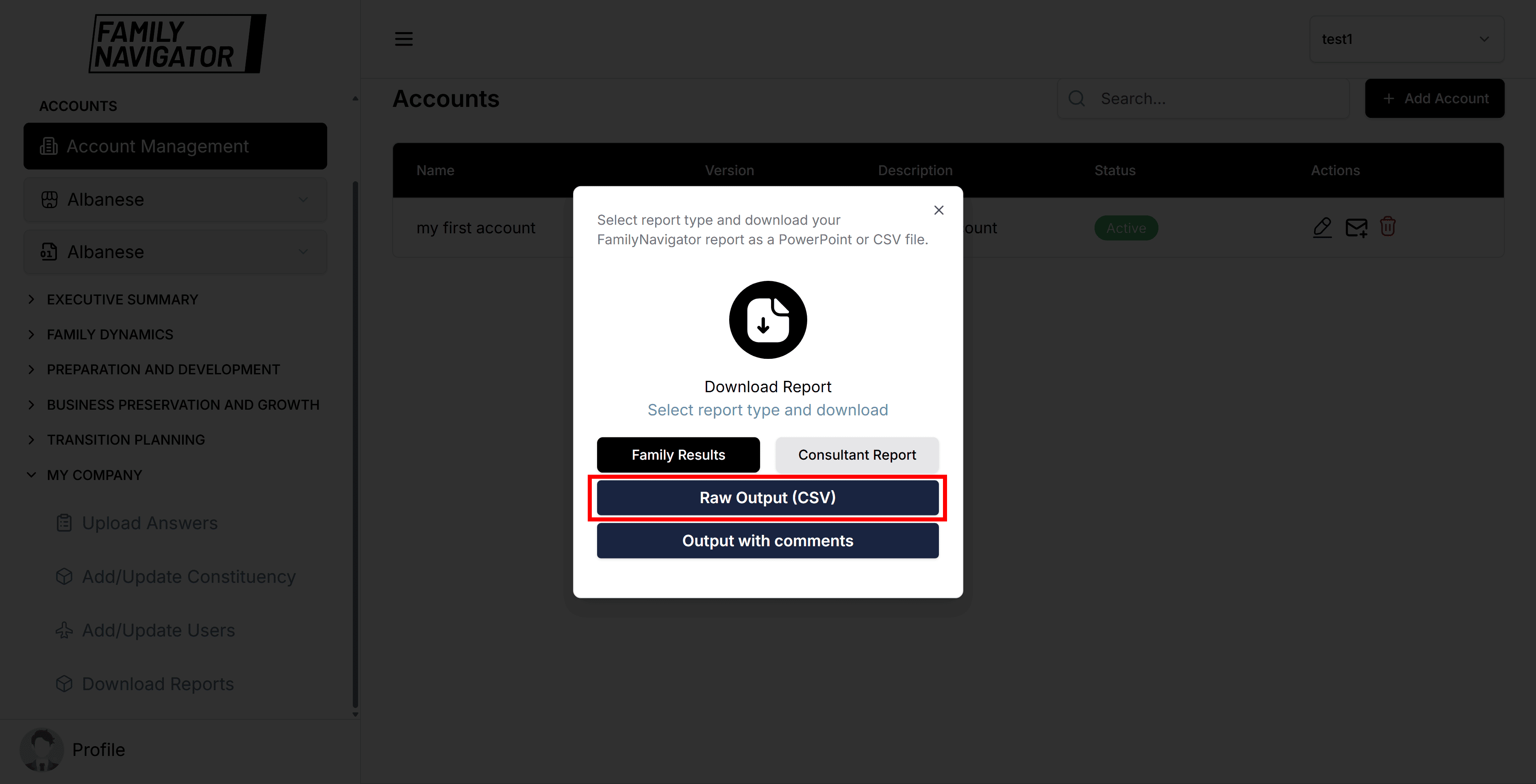
Raw Output (CSV)
This exports raw participant data in CSV format.
- Click the "Raw Output (CSV)" button.
- The file will be named
participant_data.csvand downloaded automatically.
Output with Comments (CSV)
This exports detailed responses including comments in CSV format.
- Click the "Output with comments" button.
- The file will be named
detailed_responses.csvand downloaded automatically.
Downloading Process
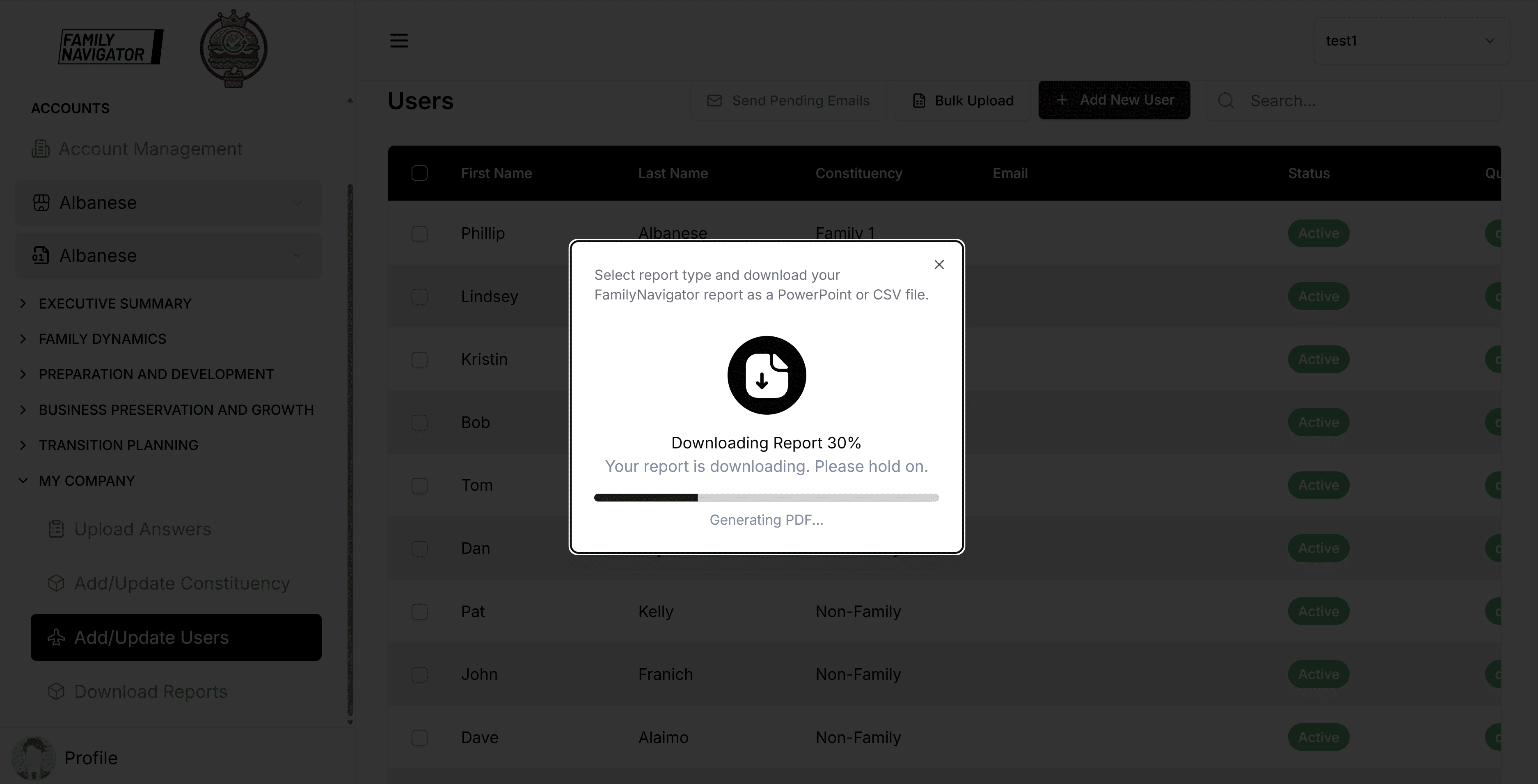
- After selecting your report type, the system will begin generating the report.
- A progress bar will appear showing the download progress (0% to 100%).
- Status messages will update as the process advances:
- "Preparing data..." (0-30%)
- "Generating PDF..." (30-60%)
- "Finalizing report..." (60-90%)
- "Almost done..." (90-100%)
- Once complete, the file will be automatically downloaded to your default downloads folder.
- The modal will close automatically upon successful completion.
Data Availability Check
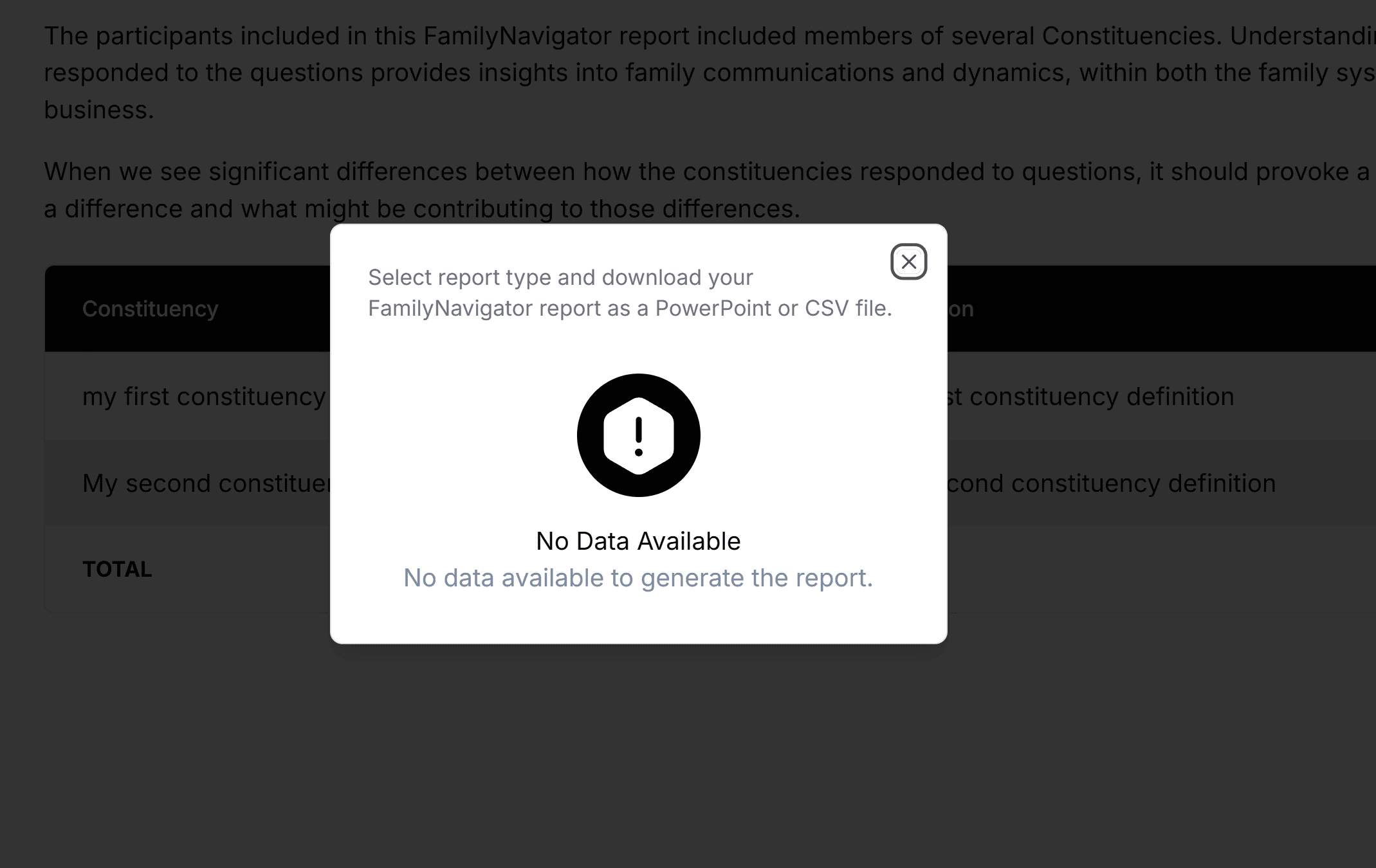
Before downloading, the system checks if data is available for your account:
- If data is available, you'll see the download options.
- If no data is available, you'll see a "No Data Available" message.
Error Handling
If an error occurs during the download process:
-
An error message will be displayed in the modal.
-
Common errors include:
- "No account selected"
- "Failed to check account data"
- "Server error while fetching report data"
- "Failed to generate CSV"
-
Click "Try Again" to retry the operation.
-
If the issue persists, contact support.
Cancellation
You can cancel an ongoing download by clicking the "Cancel" button or closing the modal. A confirmation toast will appear.
File Naming Convention
Downloaded files follow this naming pattern:
- PDF Reports:
{Account_Name}_{Report_Type}_Report.pdf- Example:
MyCompany_Family_Results_Report.pdf
- Example:
- CSV Files: Fixed names as described above
Troubleshooting
- Slow Downloads: Large reports may take time to generate. Please wait for the process to complete.
- Browser Blocking Downloads: Ensure your browser allows downloads from this site.
- Incomplete Data: Make sure your account has completed questionnaires before generating reports.
- Network Issues: Check your internet connection and try again.
- Permission Errors: Ensure you have the necessary permissions to access report data.
Additional Notes
- Reports are generated in real-time based on current data.
- CSV exports include all available participant responses.
- All downloads are secure and require authentication.