Login
This guide explains step by step how to log in to the Family Navigator application.
Step 1: Access the Login Page
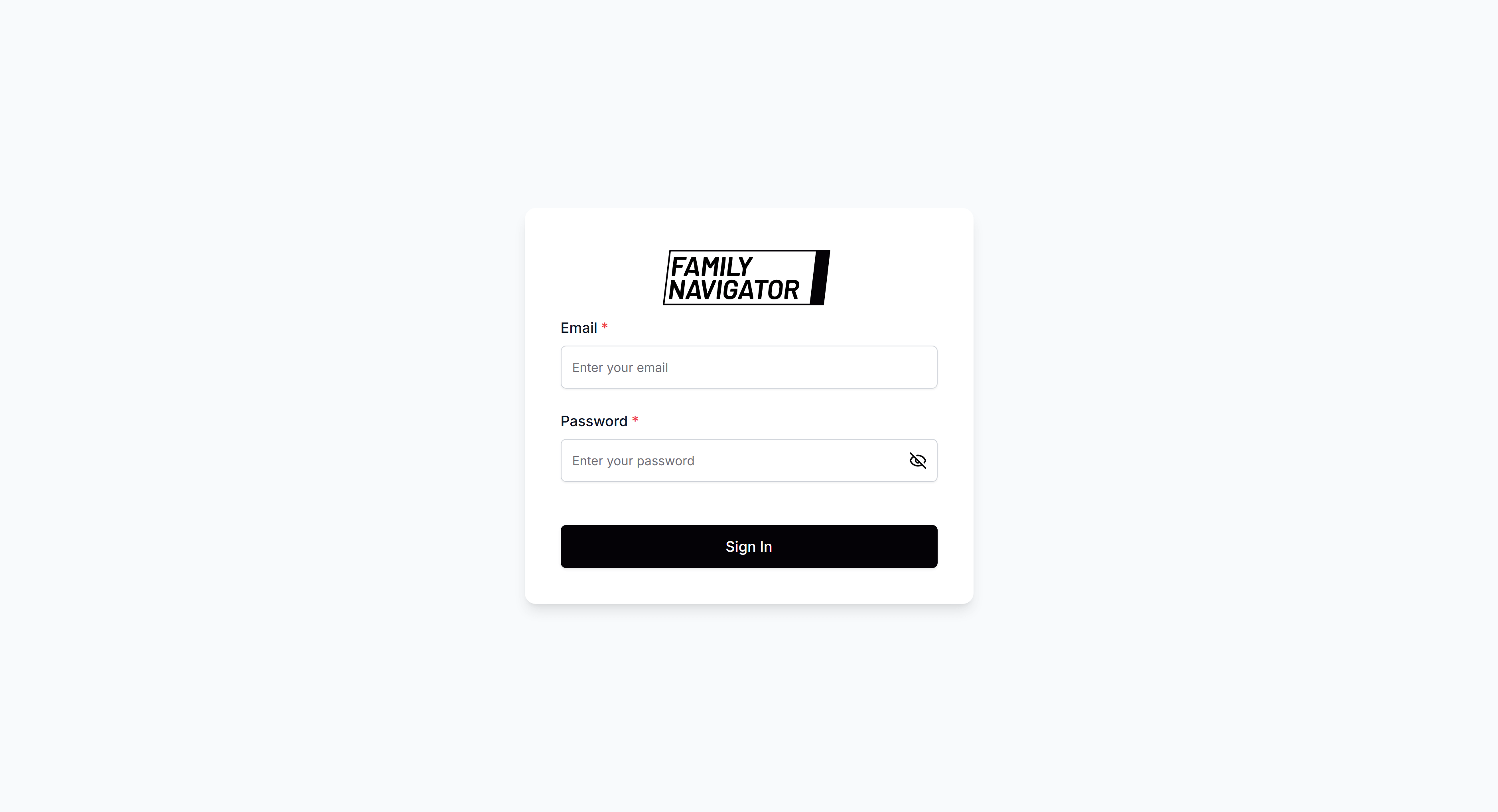
Navigate to the application URL and go to the login page. You will see a form with fields to enter your email and password.
Step 2: Enter Your Email
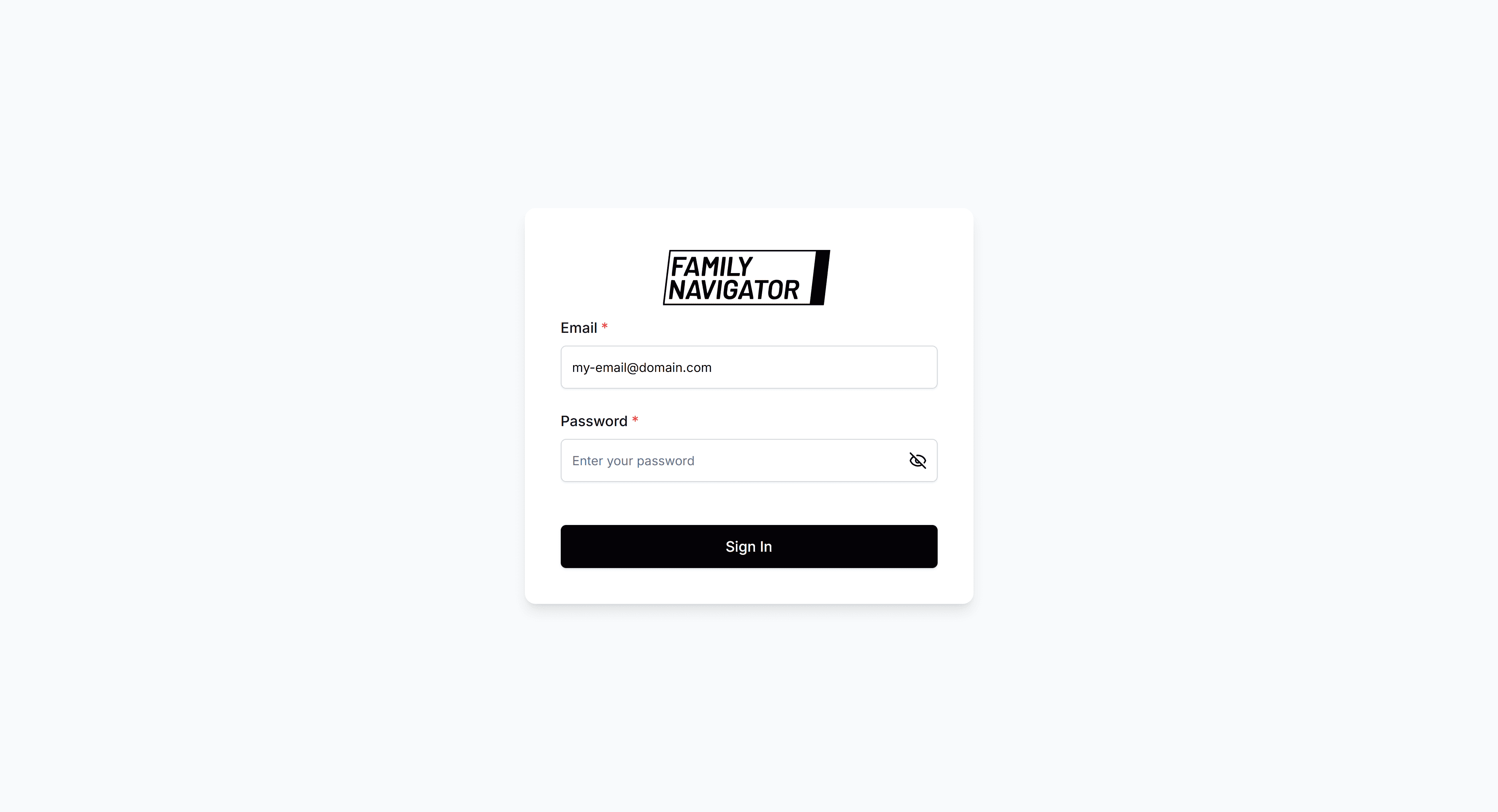
In the "Email" field, type your registered email address in the system. Make sure the format is correct (example: user@domain.com).
Step 3: Enter Your Password
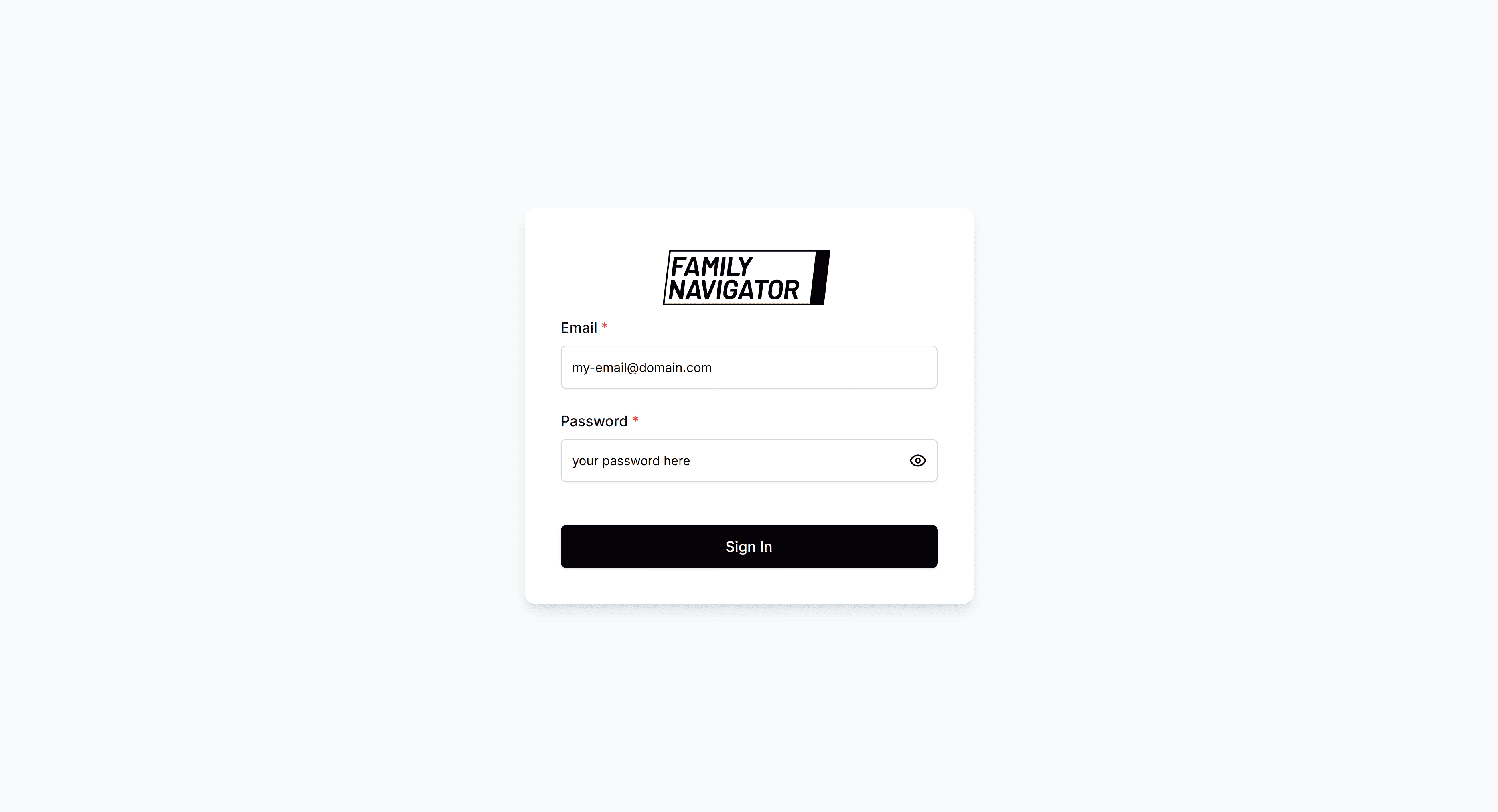
In the "Password" field, type your password. The password is case-sensitive.
Step 4: Click "Sign In"
Once you have entered your email and password, click the "Sign In" button to log in.
Possible Errors
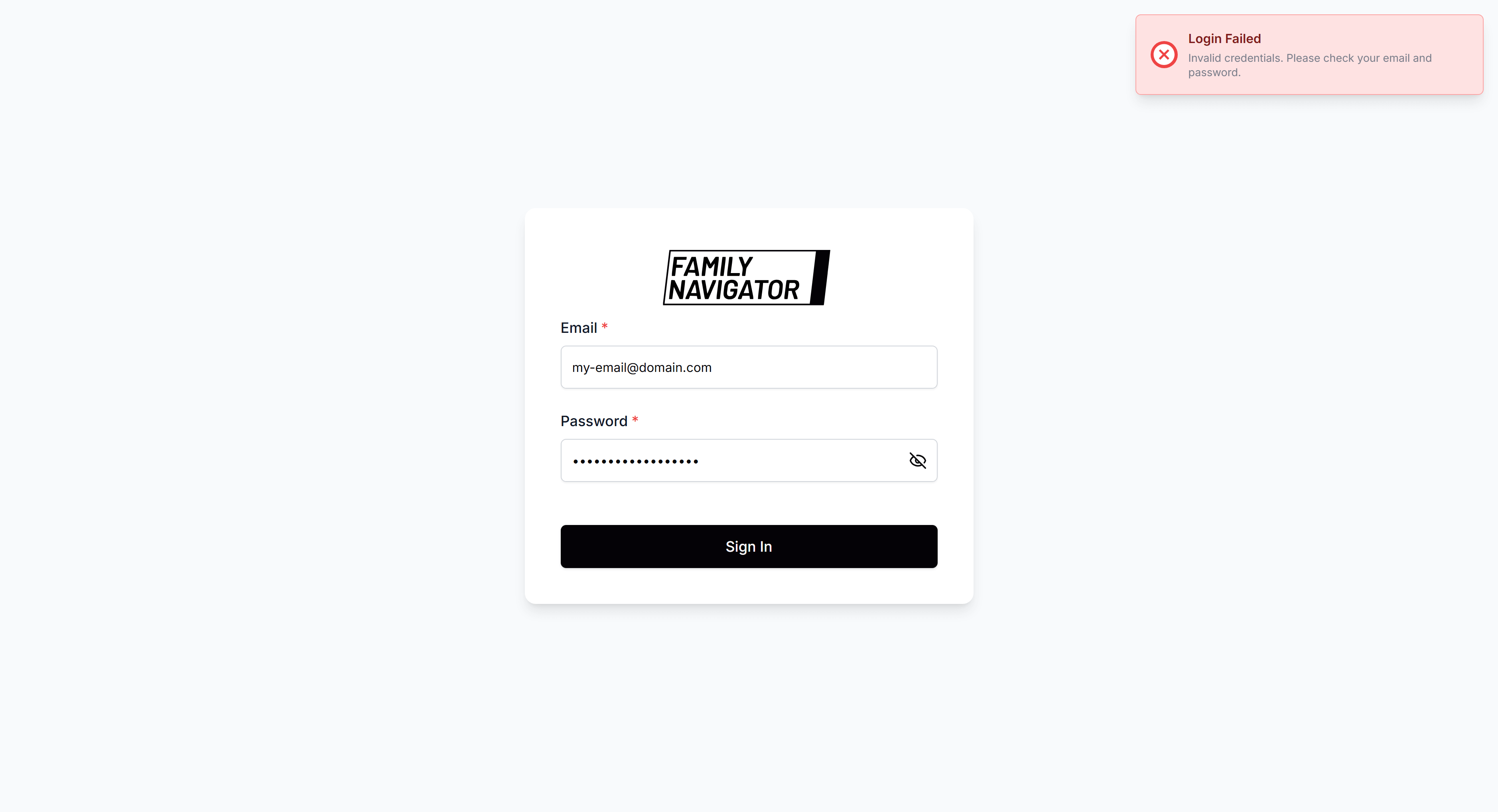
- Invalid Credentials: If the email or password is incorrect, you will see an error message. Verify that the data is correct and try again.
- Network Error: If there are connection issues, try again later.
After a successful login, you will be redirected to the main dashboard of the application.