Email Templates
This guide explains how to configure and customize email templates used for questionnaire invitations and reminders in the Family Navigator application.
Overview
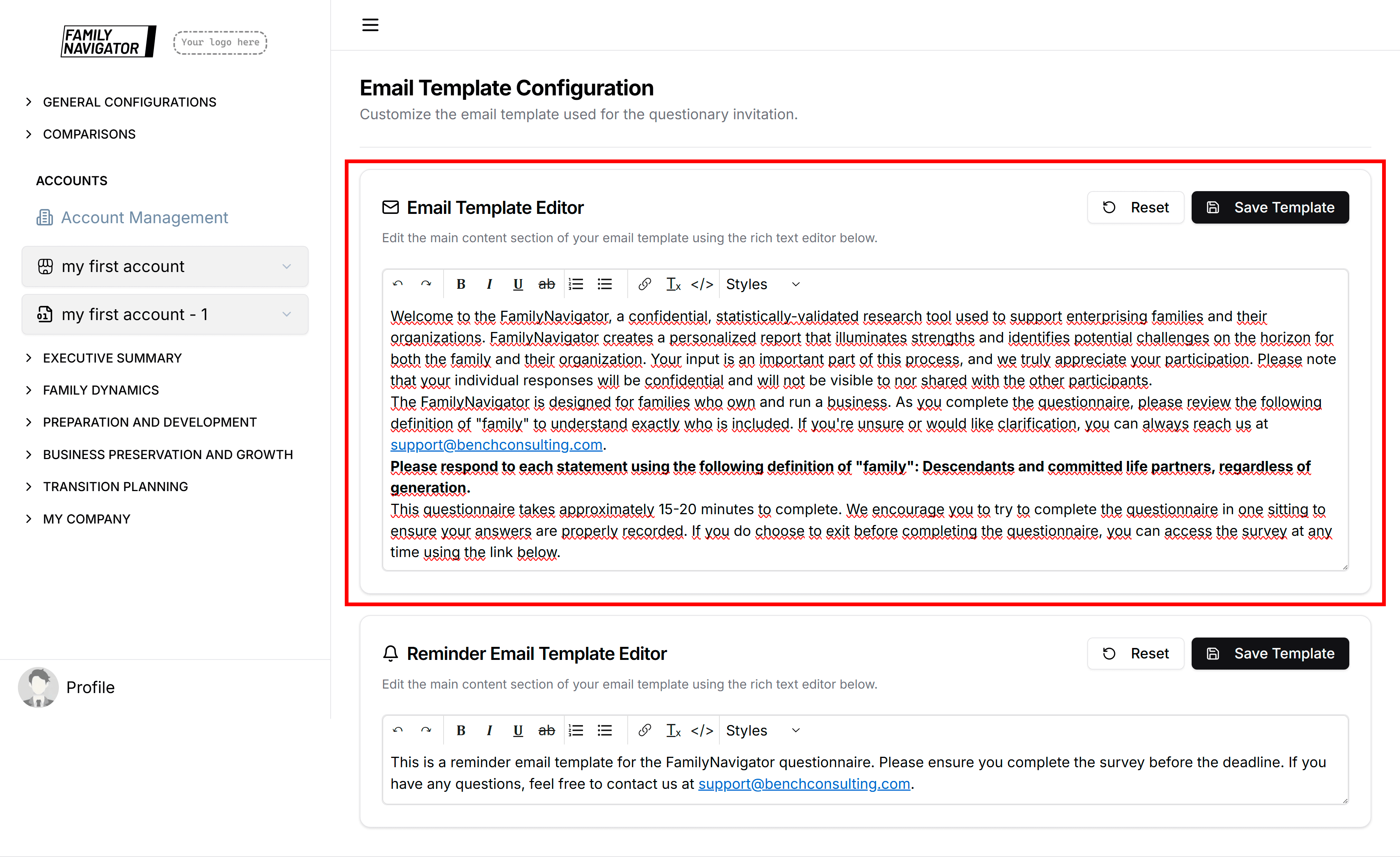
Email templates allow administrators to customize the content of automated emails sent to users. There are two main templates:
- Questionnaire Invitation Template: Used when sending initial survey invitations to users.
- Reminder Email Template: Used for follow-up reminders to users who haven't completed their questionnaires.
Accessing Email Templates
- Log in to the Family Navigator application with administrator privileges.
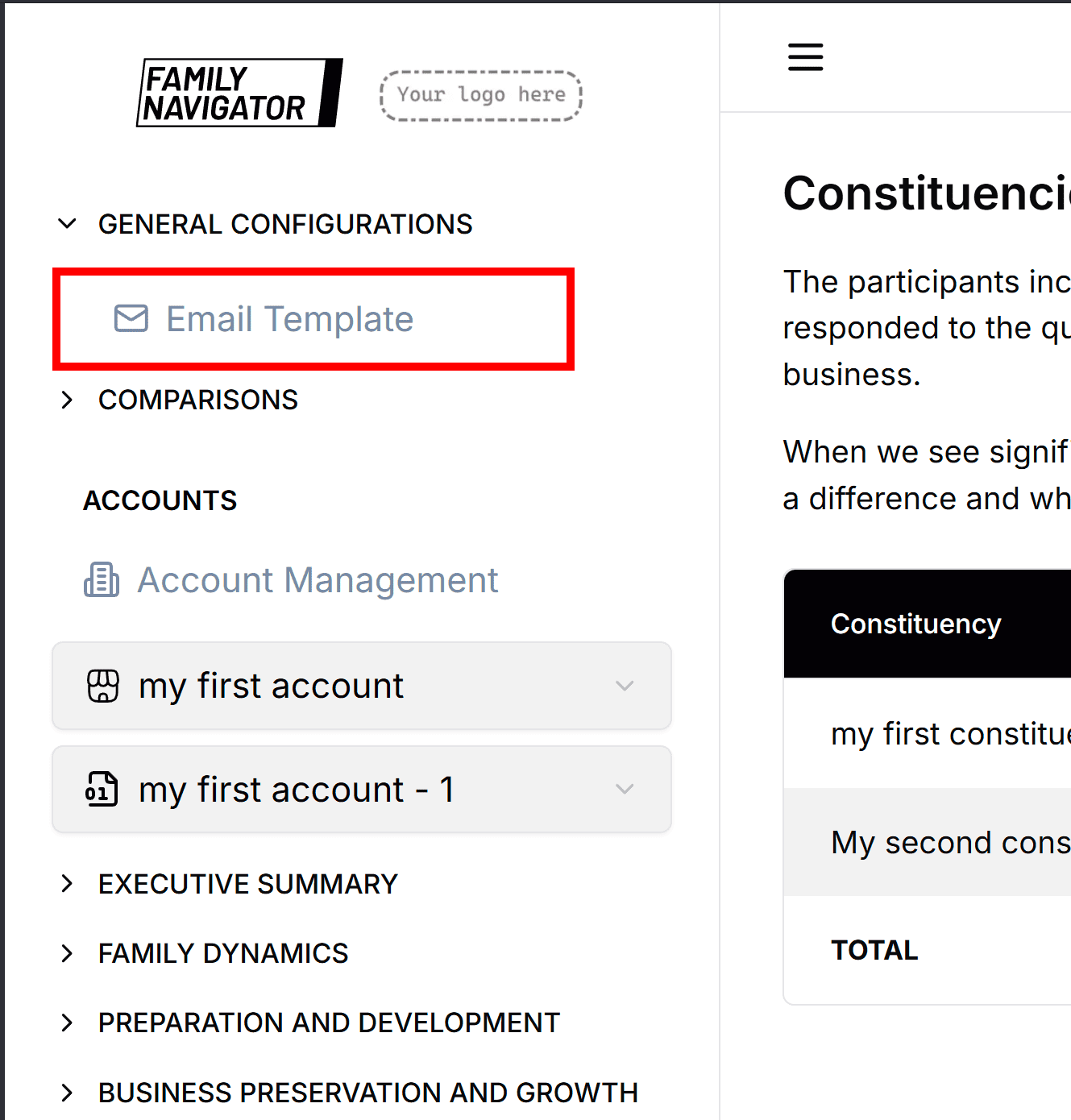
- Navigate to the "Email Template" section from the main menu.
Questionnaire Invitation Template
Step 1: Open the Template Editor
The main email template editor is displayed at the top of the page.
Step 2: Edit the Content
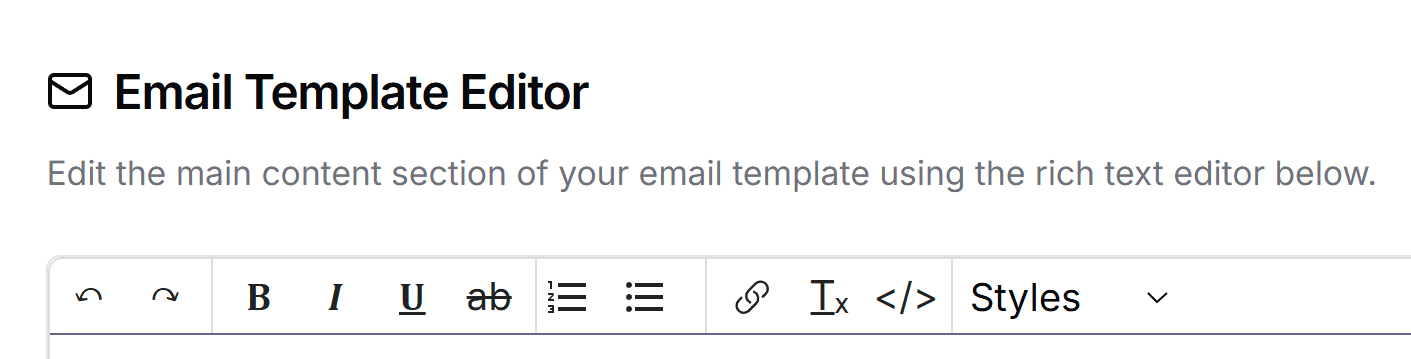
Use the rich text editor to modify the email content. The editor supports:
- Basic formatting (bold, italic, underline)
- Lists (ordered and unordered)
- Links and images
- Text alignment
- Font size and color options
Step 3: Preview Changes
As you type, the content updates in real-time in the editor. You can see how the email will appear to recipients.
Step 4: Save or Reset Changes
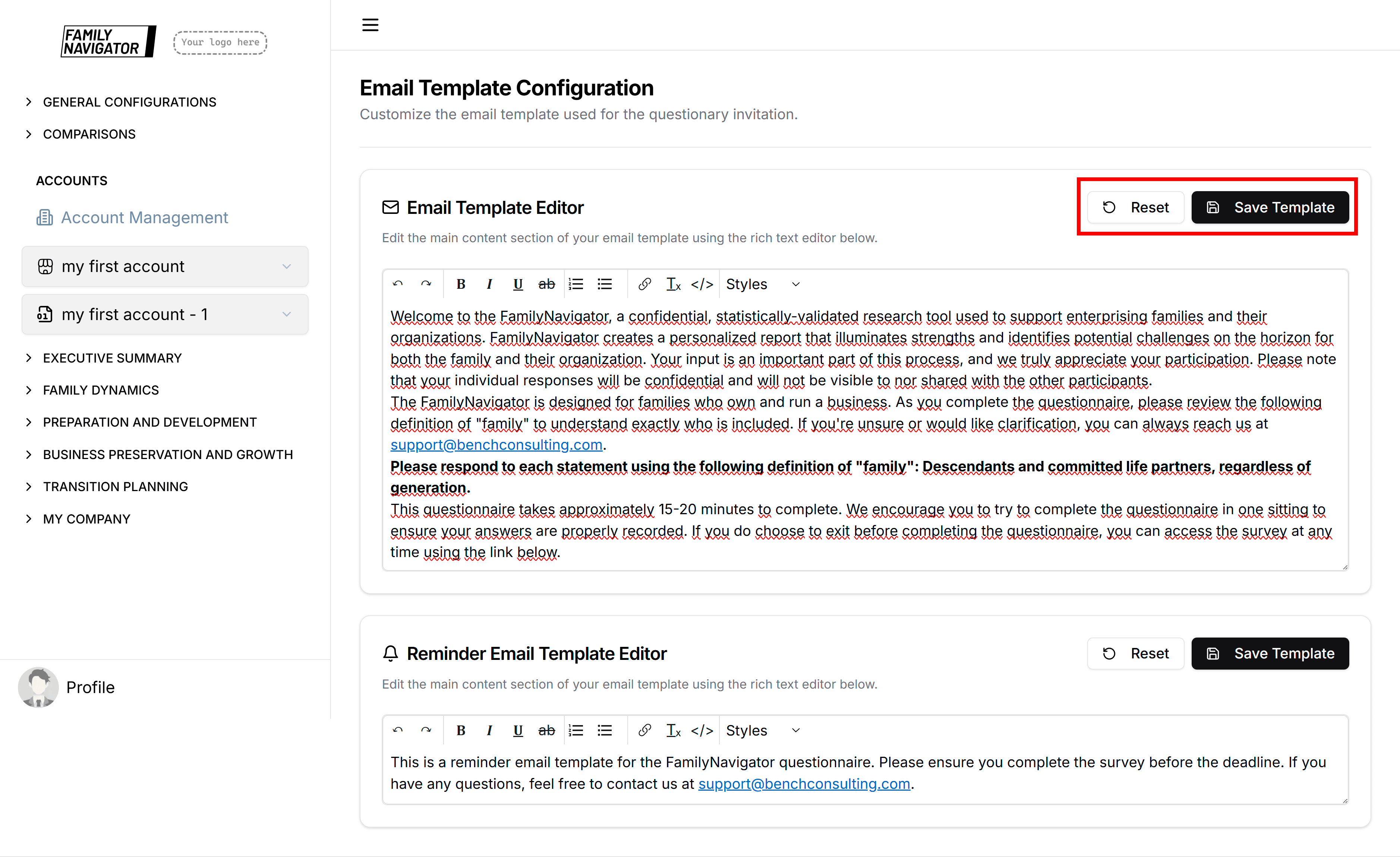
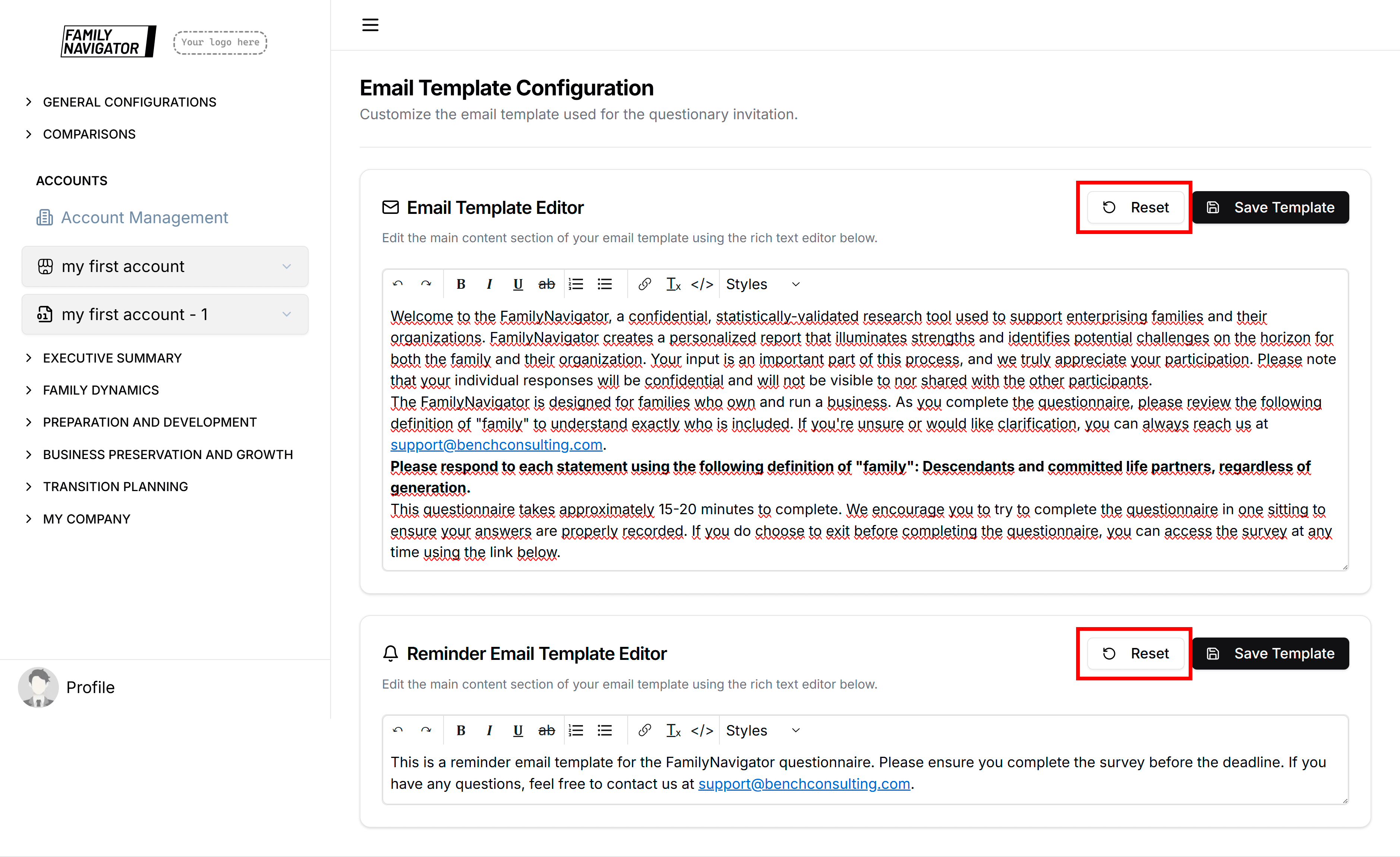
- Click "Save Template" to save your changes.
- Click "Reset" to revert to the last saved version.
Reminder Email Template
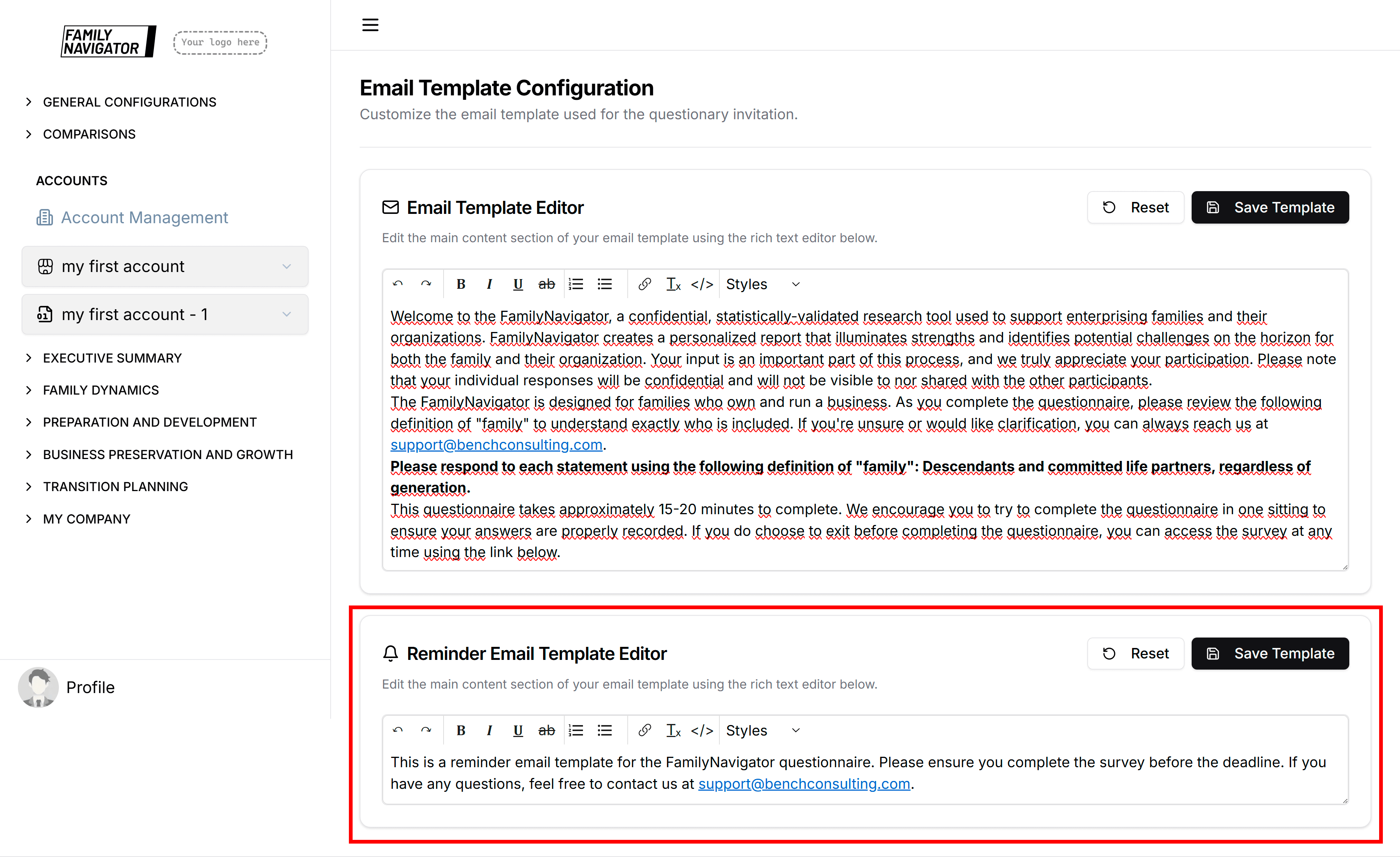
Step 1: Locate the Reminder Editor
Scroll down to find the "Reminder Email Template Editor" card.
Step 2: Edit Reminder Content
Use the same rich text editor to customize the reminder email content. This template is sent to users who have not completed their questionnaires.
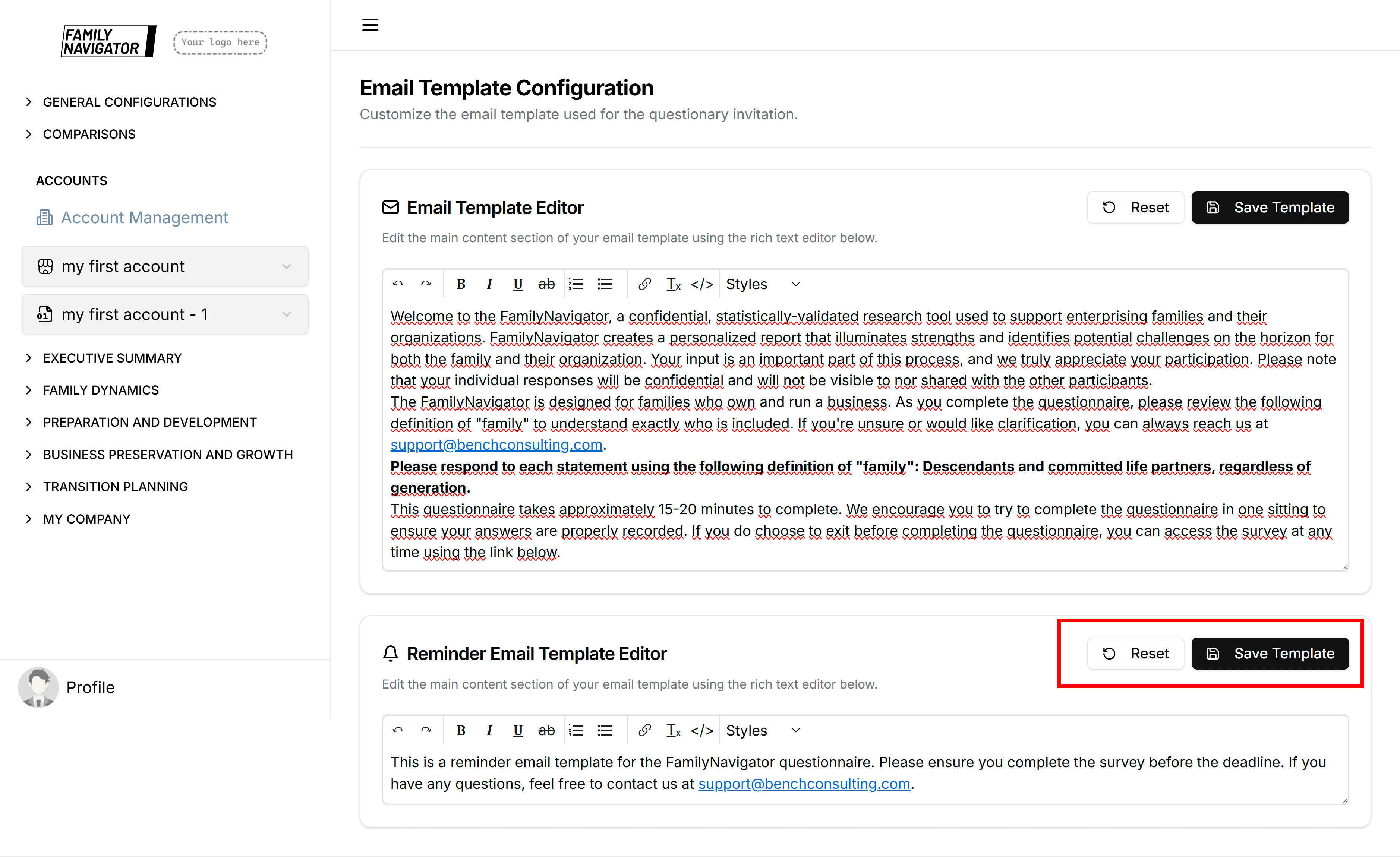
Step 3: Save Reminder Changes
- Click "Save Template" to save reminder template changes.
- Click "Reset" to revert reminder template to the last saved version.
Best Practices
- Professional Tone: Maintain a professional and encouraging tone.
- Mobile-Friendly: Ensure content looks good on mobile devices.
- Branding: Include your organization's branding elements if appropriate.
Saving Changes
When you save a template:
- Changes are immediately applied to future emails.
- Existing sent emails are not affected.
- A success notification appears confirming the save.
Resetting Changes
The "Reset" button reverts the editor content to the last successfully saved version, discarding any unsaved changes.
Error Handling
If saving fails:
- An error message will appear.
- Common issues: Network problems, server errors, or invalid content.
- Try saving again or contact support if issues persist.
Loading States
- The page shows a skeleton loader while templates are being fetched.
- Save buttons show "Saving..." during the save process.
Permissions
Only users with administrator privileges can access and modify email templates. Regular users cannot view this page.
Integration with User Management
Email templates are automatically used when:
- Sending initial questionnaire invitations (via "Send Survey" in Users management)
- Sending bulk invitations
- Sending reminders (via "Send Reminder" in Users management)
- Resending questionnaires
Troubleshooting
- Editor Not Loading: Ensure JavaScript is enabled and try refreshing the page.
- Changes Not Saving: Check your internet connection and try again.
- Formatting Issues: Use the editor toolbar for consistent formatting.
- Permission Denied: Contact your administrator to grant access.
Technical Details
- Templates are stored as HTML content in the application settings.
- Templates support full HTML for advanced customization.