Account Activation
This guide explains step by step how to activate your consultant account in the Family Navigator application by completing the payment process.
Overview
As a Primary Consultant, you need to activate your account before you can access the full features of the application. The activation process involves selecting a payment plan and completing a secure payment through Stripe.
Step 1: Access the Activation Page
After logging in with an unactivated account, you will be automatically redirected to the Account Activation page. If you are not redirected, you can access it directly from the URL: /activate-user.
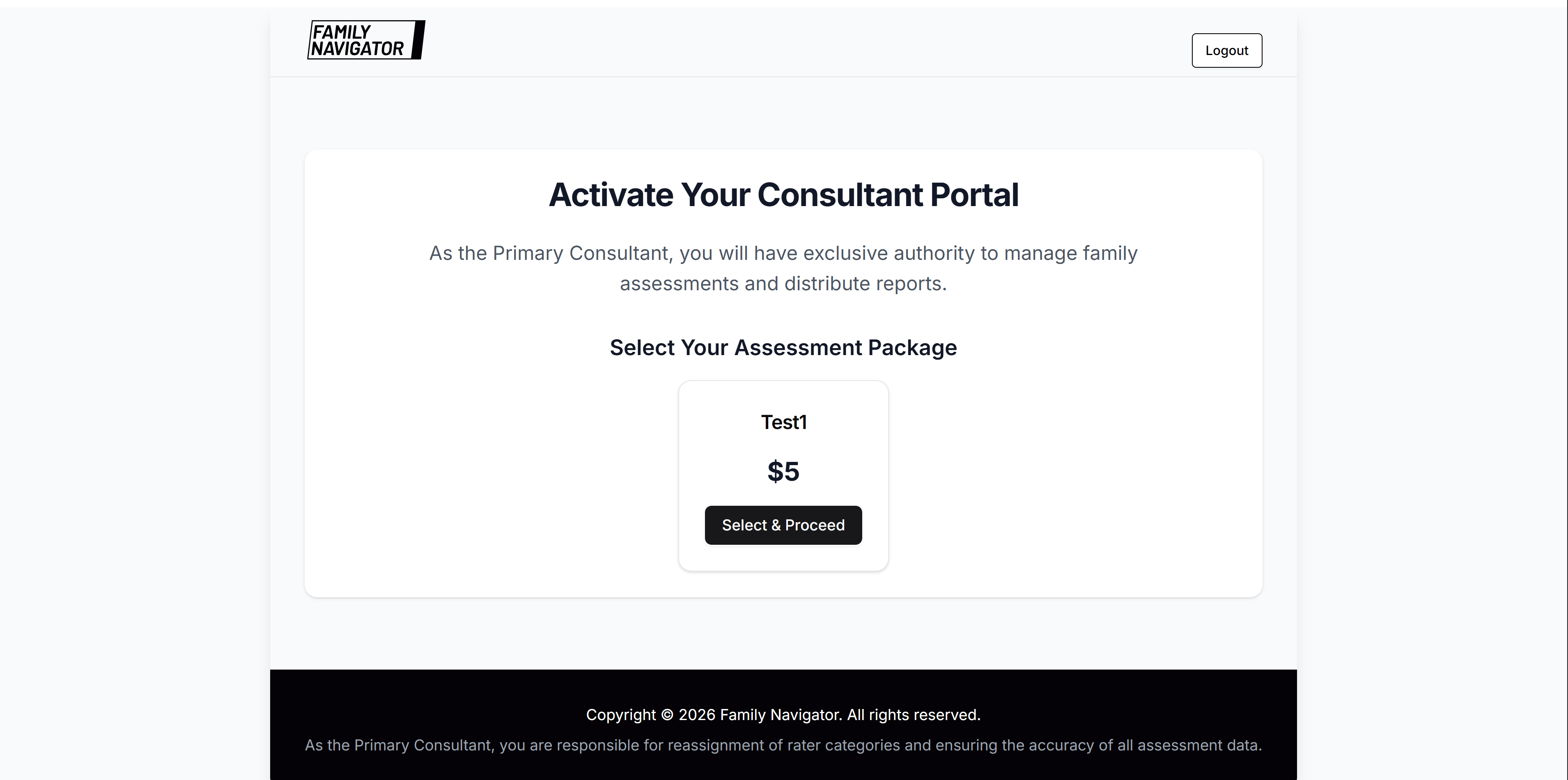
Step 2: Review Available Packages
On the activation page, you will see the available assessment packages. Each package includes:
- Package Name: The name of the activation package
- Price: The cost in US dollars
Step 3: Select Your Package
Click on the package card you want to purchase. The selected package will be highlighted.
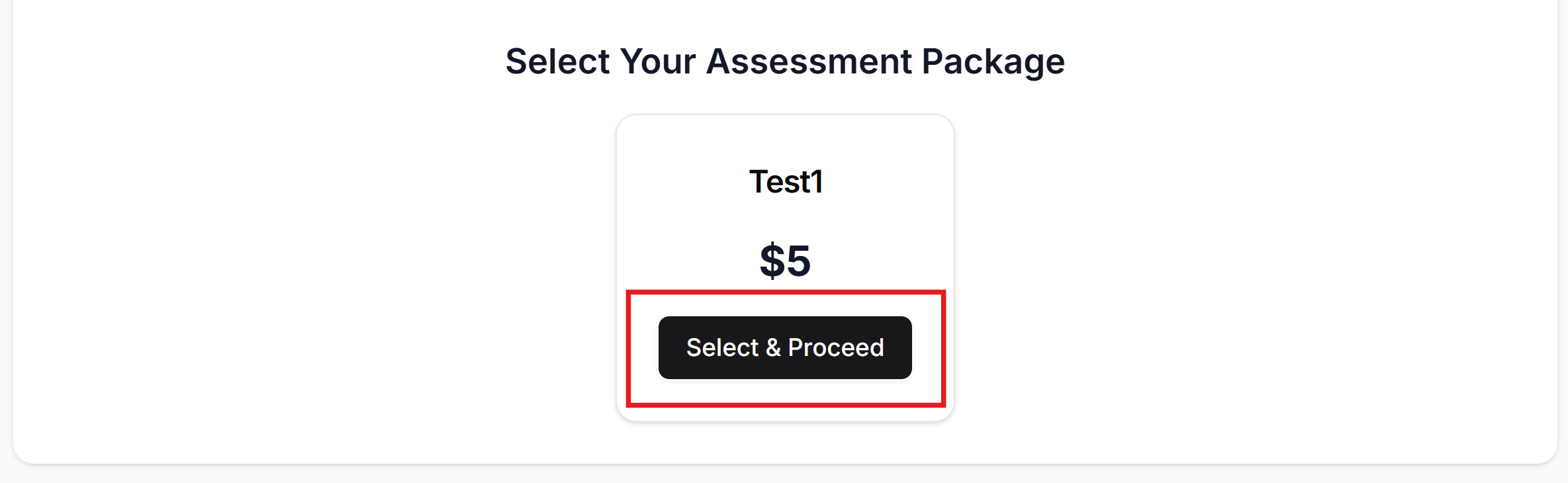
Step 4: Proceed to Payment
Click the "Select & Proceed" button on your chosen package. This will:
- Create a secure checkout session
- Redirect you to Stripe's secure payment page
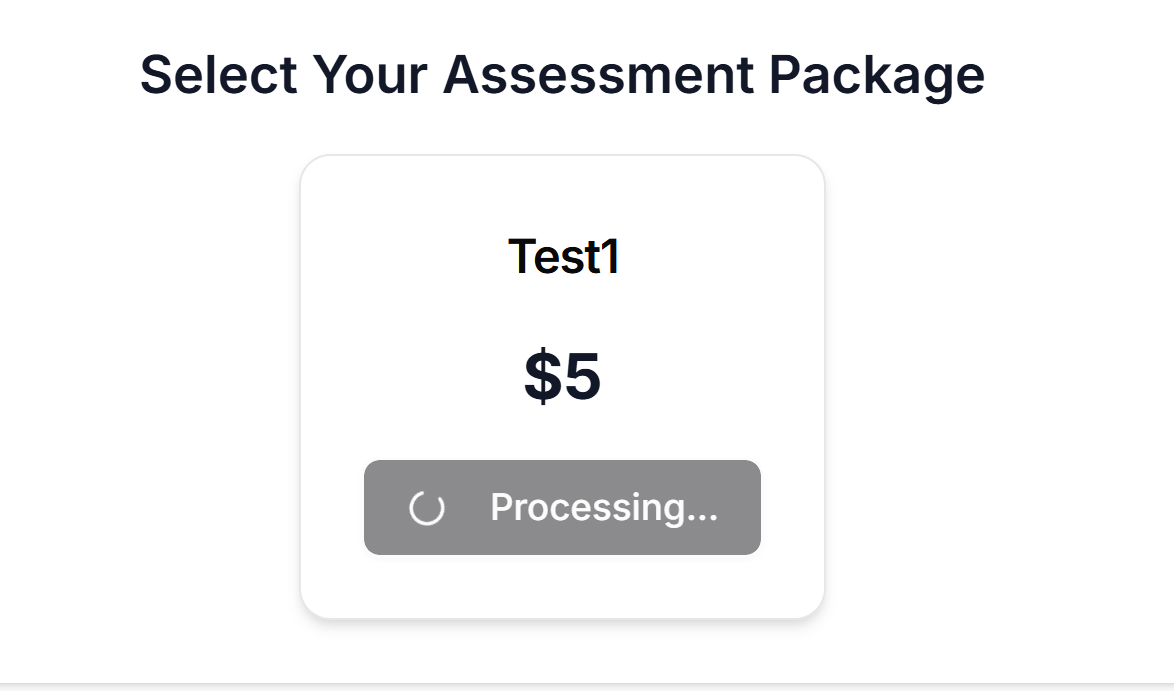
Note: The button will show "Processing..." while the checkout session is being created. Please wait for the redirect.
Step 5: Complete Payment on Stripe
You will be redirected to Stripe's secure checkout page. Here you need to:
-
Enter Card Information:
- Card number
- Expiration date
- CVC (security code)
- Billing ZIP code
-
Review Payment Details:
- Verify the amount
- Check the product name
- Confirm your email address
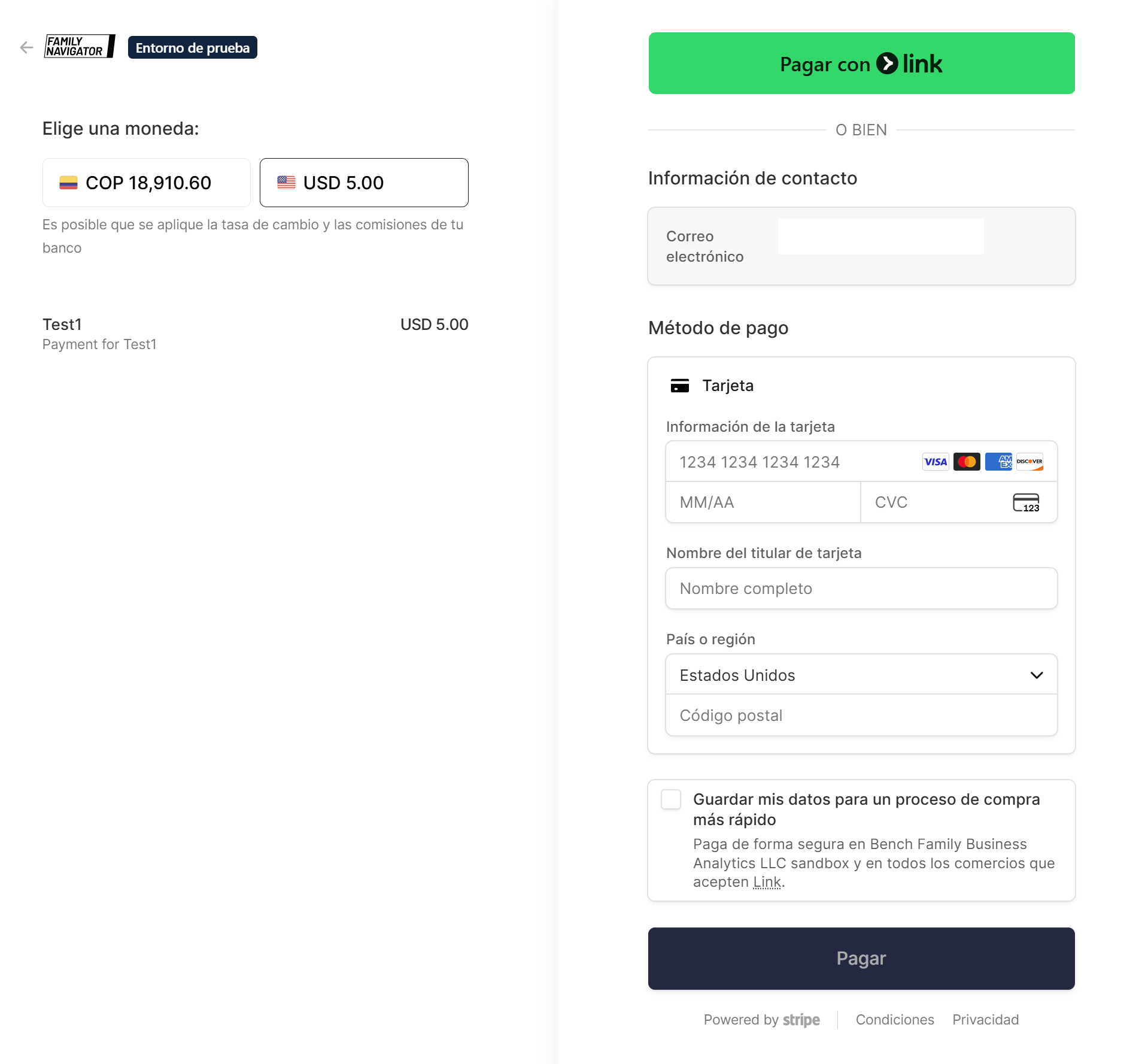
- Click "Pay" to complete the transaction
Step 6: Payment Processing
After clicking "Pay", Stripe will process your payment. This may take a few seconds. You will see a loading indicator during this process.
Step 7: Payment Success
Once your payment is successfully processed, you will be automatically redirected back to the Family Navigator application. You will see a success message:
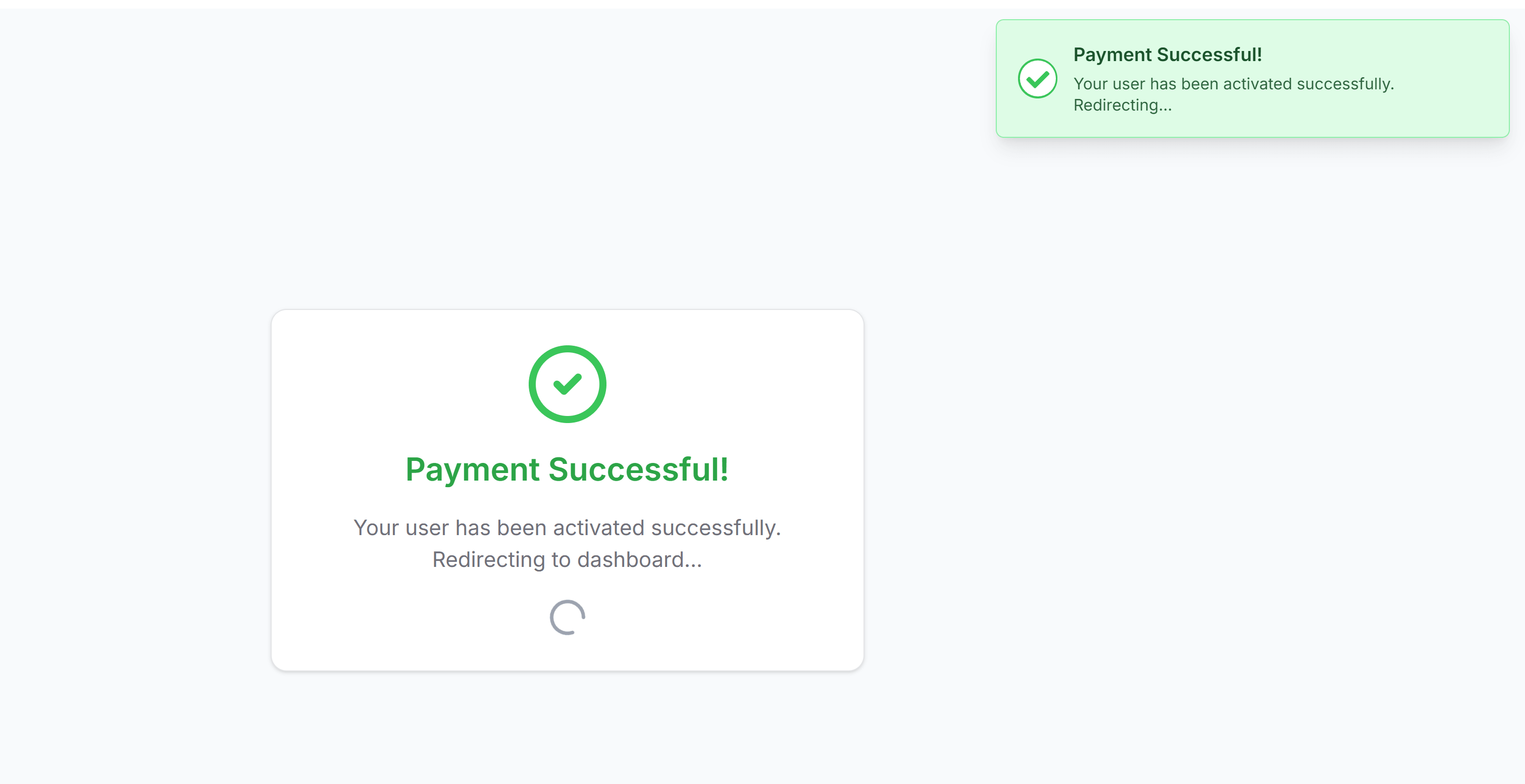
The system will:
- Confirm your payment with the backend
- Update your account status to "PAID"
- Automatically redirect you to the dashboard
Note: The redirect may take a few seconds while the system updates your account status. Please wait for the automatic redirect.
Step 8: Access Your Dashboard
After successful activation, you will be redirected to the main dashboard where you can:
- Manage family assessments
- View reports
- Access all application features
Canceling Payment
If you need to cancel the payment process:
- Click the "Cancel" button on the Stripe checkout page
- You will be redirected back to the activation page
- A cancellation message will be displayed
- You can try again by selecting a package and clicking "Select & Proceed"
Troubleshooting
Payment Not Processing
- Check your internet connection: Ensure you have a stable internet connection
- Verify card details: Make sure all card information is correct
- Check card balance: Ensure your card has sufficient funds
- Try a different card: Some cards may have restrictions
Redirect Not Working
- Wait a few seconds: The redirect may take 5-10 seconds after payment
- Check browser popup blocker: Ensure popups are not blocked
- Refresh the page: If stuck, refresh and check your account status
- Log out and log back in: This will refresh your session
Account Status Not Updated
- Wait for webhook processing: The system may take a few seconds to update
- Check your email: You should receive a payment confirmation email
- Contact support: If your account is not activated after 5 minutes, contact support
Error Messages
- "Failed to create checkout session": There may be a temporary server issue. Try again in a few moments.
- "Payment Canceled": You canceled the payment. You can try again by selecting a package.
- "Activation Failed": There was an error processing your payment. Verify your card details and try again.
Security Notes
- All payments are processed securely through Stripe
- Your card information is never stored on our servers
- Stripe is PCI-DSS compliant for secure payment processing
- All transactions are encrypted
Payment Confirmation
After successful payment, you will receive:
- On-screen confirmation: A success message in the application
- Email confirmation: A receipt email from Stripe (check your inbox)
- Updated account status: Your account will show as "PAID" in the system
Need Help?
If you encounter any issues during the activation process:
- Check the troubleshooting section above
- Contact your system administrator
- Reach out to support with your payment confirmation number