Upload Answers
Upload Answers lets you import FamilyNavigator survey results from an Excel/CSV “raw” sheet into a selected account. This is useful when answers were collected outside the in-app questionnaire flow.
Accessing Upload Answers
- Log in to the Family Navigator application.
- In the sidebar, expand MY COMPANY.
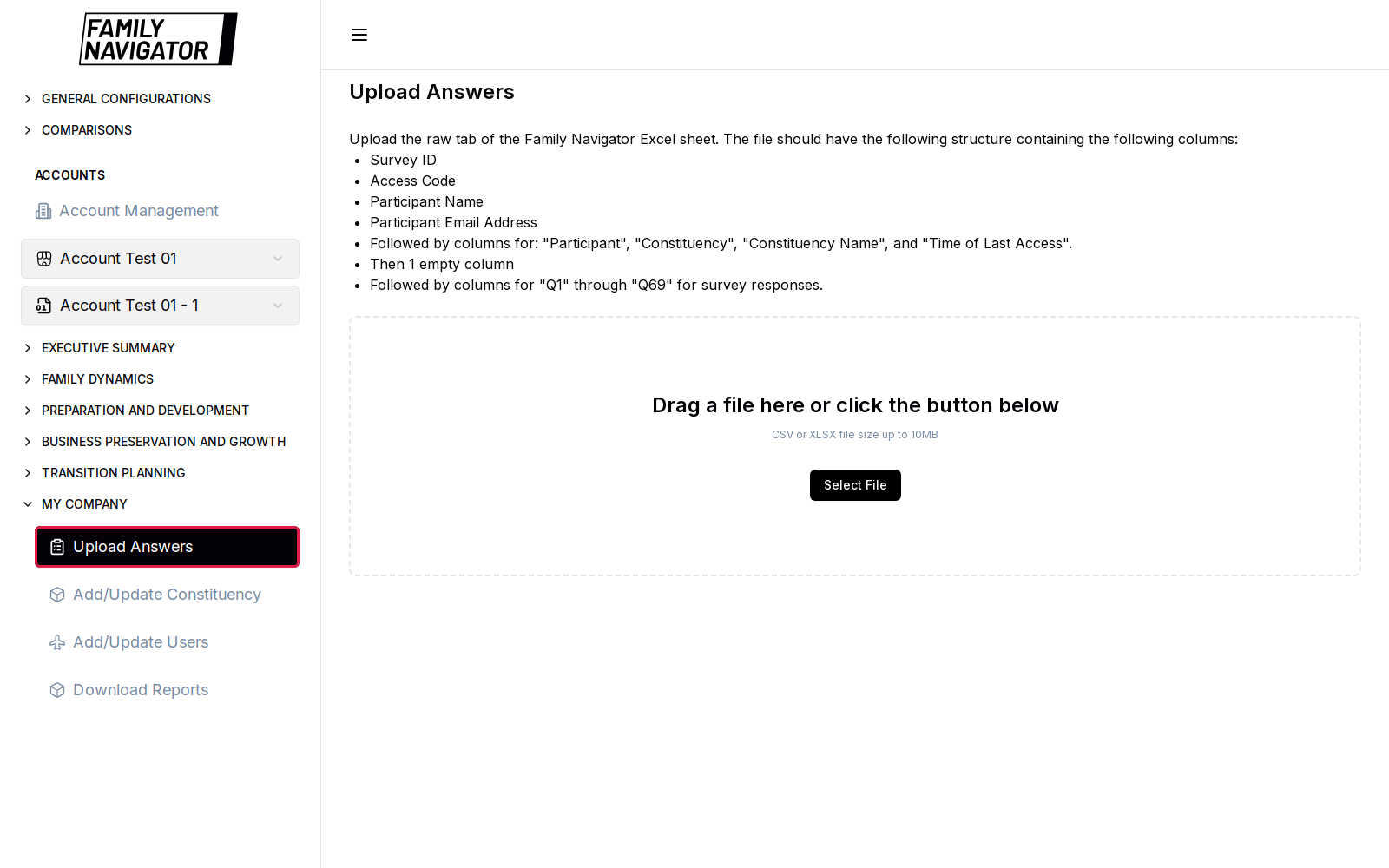
- Click Upload Answers (highlighted below).
Expected File Structure
Upload the raw tab of the Family Navigator Excel sheet. The file should include columns such as:
- Survey ID
- Access Code
- Participant Name
- Participant Email Address
- Participant, Constituency, Constituency Name, and Time of Last Access
- One empty column
- Response columns Q1 through Q69
Accepted formats: CSV or XLSX, up to 10MB, typically one file at a time.
Uploading a File
Step 1: Choose a File
- Drag a file onto the drop zone, or
- Click Select File and pick a CSV/XLSX from your computer.
Step 2: Select the Target Account
Choose the account that should receive the imported answers (when prompted by the form / account selector).
Step 3: Upload
Click Upload. While processing, the button may show Uploading….
Existing Data Confirmation
If the account already has answer data, a confirmation modal asks you to confirm overwrite before continuing.
Removing a Selected File
Use the remove (X) control on the file entry. Confirm removal if the modal asks you to discard the pending selection.
Validation Notes
- Rows with placeholder Doe names (for example John/Jon/Jane Doe) may be filtered out during import.
- Invalid structure or oversized files are rejected with an error message.
- Leaving the page with a pending file may trigger a browser warning.
After a Successful Upload
- Open Executive Summary and Focus Area pages for that account to verify scores.
- Optionally generate an AI Summary with the newly imported responses.
- Use Download Reports if you need PDF/CSV exports.
Troubleshooting
- No file accepted: Confirm CSV/XLSX and size ≤ 10MB.
- Upload fails: Check column layout against the on-page instructions.
- Scores look empty: Confirm you selected the correct account version after upload.
- Overwrite prompt: Expected when the account already has data; cancel if you are unsure.