Participants (Constituencies Overview)
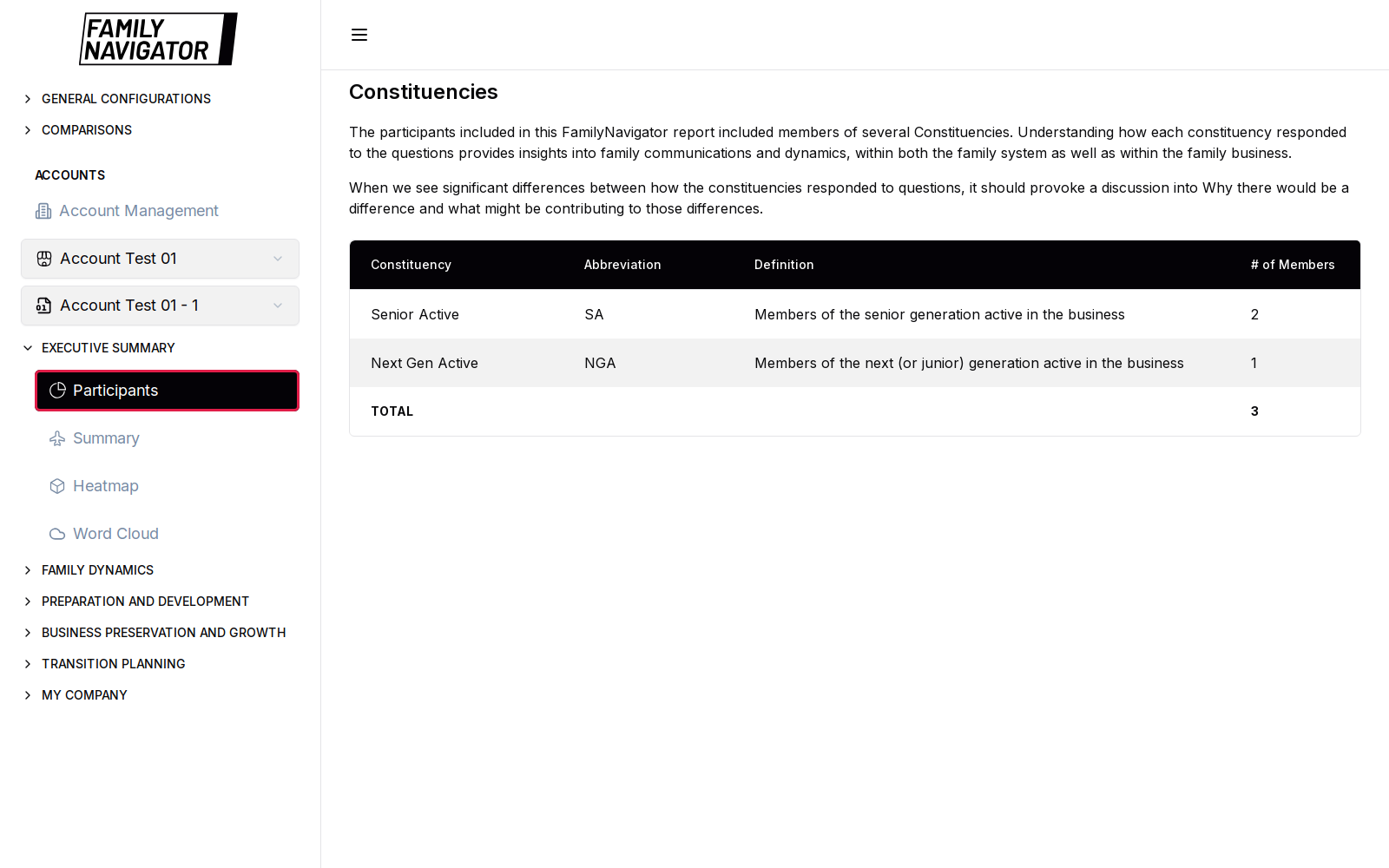
This page is the Executive Summary home view. It lists the constituencies that participated in the selected account’s FamilyNavigator results and how many members each group includes.
Accessing Participants
- Log in to the Family Navigator application.
- In the sidebar under ACCOUNTS, select the account you want to review (and its version, if more than one exists).
- Open EXECUTIVE SUMMARY.
- Click Participants (highlighted below).
Selecting an Account
Dashboard analytics are scoped to the selected account (and account version) in the sidebar under ACCOUNTS. Change those selectors to refresh the constituency table for another account.
What You See
- Introductory text explaining why constituency differences matter for family communication and dynamics.
- A table with columns such as:
- Constituency
- Abbreviation
- Definition
- Member counts (where available)
- A TOTAL row summarizing participants across constituencies.
How to Use
This view is read-only. Use it as a primer before reviewing Summary, Heatmap, Word Cloud, or Focus Area pages.
Notes
- On first visit you may see a Welcome to Family Navigator modal; close it to continue.
- If no account is selected or the account has no data, the table may be empty or show a loading / empty state.