Word Cloud
The Word Cloud visualizes the most frequent words in participant comments for the selected account. Larger words appear more often.
Accessing Word Cloud
- Log in and select an account that has participant comments.
- Sidebar → EXECUTIVE SUMMARY → Word Cloud (outlined in red in the screenshot).
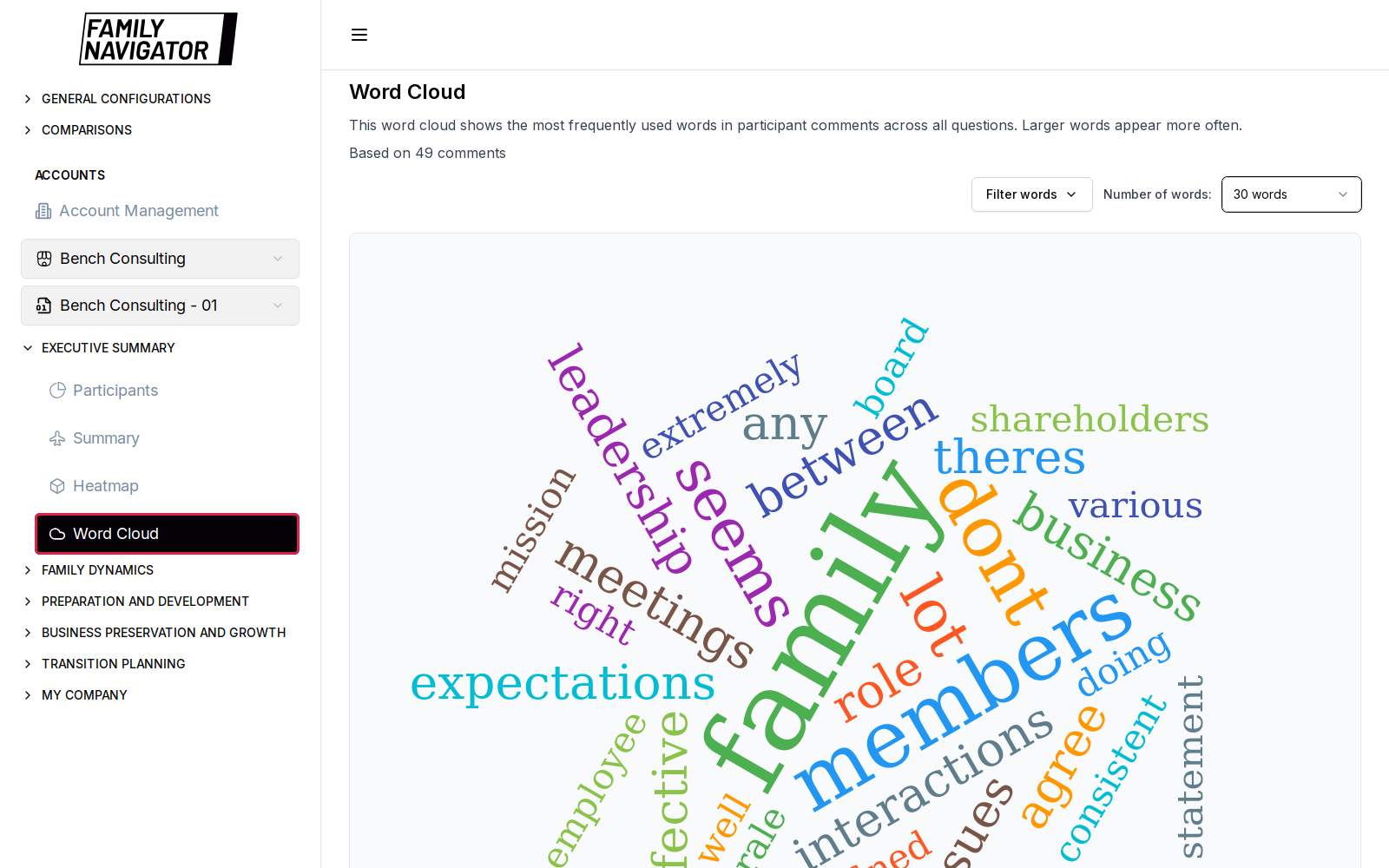
What You See
- Title and short description of the cloud.
- A counter such as Based on N comments.
- Controls:
- Filter words — search and show/hide individual terms
- Number of words — limit the cloud (for example 10, 20, 30, 50, 100)
- Actions inside the filter UI typically include Show all, Hide all, and Reset filters.
Empty State
If the account has no comments (or all words are hidden), the page shows a message such as No comments available for this account.
How to Use
- Confirm the account with comments is selected.
- Adjust the word count limit to focus on top themes.
- Use Filter words to hide noise terms that are not useful for facilitation.
Notes
- Comment-based views depend on questionnaire responses that include free-text comments.
- Filtering is local to the page session; it does not change stored data.